
A bucket's page
Each of a kid’s buckets (Spending, Savings, Giving or whatever you’ve made) has its own page. Open it by tapping a bucket tile on the Money tab or a bucket card on the kid’s page. The title shows the kid and the bucket, like “Mia · Savings”.
Balance and buttons
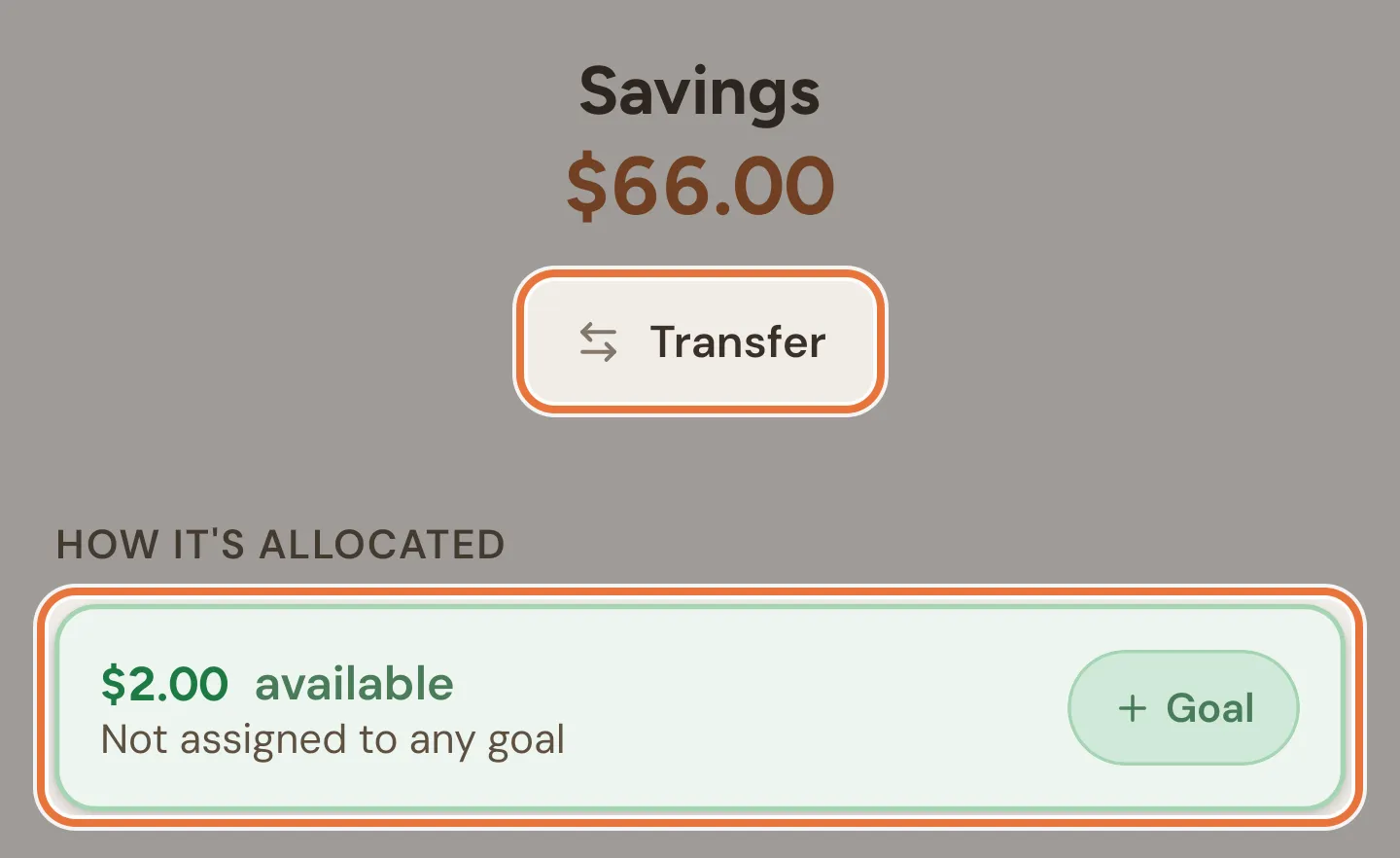
Section titled “Balance and buttons”The bucket’s name and balance sit at the top, with Transfer underneath for moving money to another of the kid’s buckets (see Transferring between buckets).
A bar pinned to the bottom repeats the balance and has two buttons:
- Add adds money straight into this bucket. You can still switch to Split across buckets in the sheet.
- Spend records a spend with this bucket already picked.
Both sheets are covered in Adding money and recording spends. Pull down to refresh the page.
How it’s allocated
Section titled “How it’s allocated”This section shows how much of the bucket is free and how much is set aside for savings goals.
- The green card shows the amount available: the balance minus whatever is set aside for this bucket’s goals. It says “Not assigned to any goal”.
- + Goal starts a new savings goal with this kid and this bucket already filled in. See Savings goals.
Setting money aside for a goal doesn’t move it anywhere. It stays in the bucket’s balance; the goal just reserves part of it. When the bucket has goals, a note underneath says so: “Funded amounts are earmarked from the $50.00 bucket balance.”
Goals in this bucket
Section titled “Goals in this bucket”When the bucket has savings goals, they’re listed under a heading with the bucket’s name, like “Savings goals”. Archived goals aren’t shown. Each goal shows:
- Its name. Tap it to open the goal.
- How much is set aside out of the target, like “$30.00 / $80.00”.
- A pencil to edit the goal.
- A progress bar, and either “38% funded” or Completed.
- Fund, for goals that aren’t complete yet.
Buying a finished goal, raising its target and archiving are all on the goal itself. See Savings goals.
Funding a goal
Section titled “Funding a goal”Fund opens a sheet titled “Fund Bike” (with the goal’s name). It shows how much you can put in, “Up to $20.00 available”, which is the smaller of the bucket’s available money and what the goal still needs.
The amount starts filled in at that maximum. Change it if you like (Max puts it back), then tap the Fund button, which shows the amount. If you type more than is available, the sheet tells you and won’t go ahead.
Recent history
Section titled “Recent history”Everything that’s happened in this bucket, newest first. More loads as you scroll. A new bucket shows “No activity yet for this bucket.”
Tap an entry for its details. For a spend, Edit transaction lets you change the amount or description, or delete it. See Editing or deleting a spend.
Renaming or deleting a bucket
Section titled “Renaming or deleting a bucket”There’s no edit button on the bucket’s own page. Go to Editing a kid and tap the pencil next to the bucket to open Edit Bucket.
- Change the Bucket name and tap Save Changes.
- Under Danger zone, Delete Bucket asks you to confirm, then takes you back to the kid’s page.
A bucket has to be empty before Quiddo will delete it. Move or spend the balance first.
Transferring between buckets
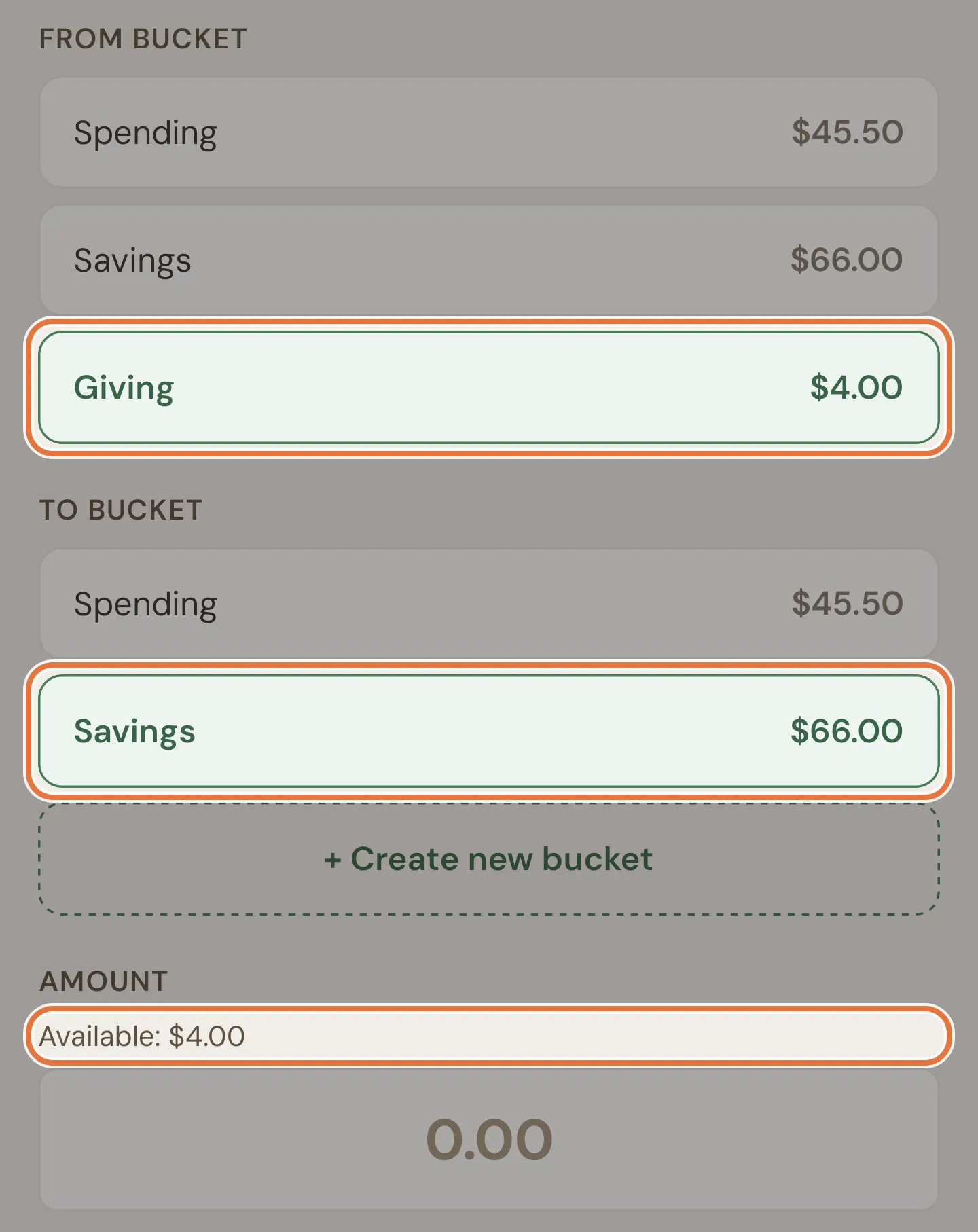
Section titled “Transferring between buckets”Transfer opens a form for moving money from one of the kid’s buckets to another.
| Field | What to do |
|---|---|
| From Bucket | Starts on the bucket you came from. Tap another of the kid’s buckets to move money out of that one instead. |
| To Bucket | Pick where it’s going. If there’s only one other bucket, it’s picked for you. |
| + Create new bucket | Makes a new bucket for this kid (name only) and picks it as the destination. |
| Amount | Shows “Available” with the from bucket’s balance. You can type a sum, like 5+2.50. |
| Description (optional) | A note for the history. Leave it blank and the entries read “Transfer to Savings” and “Transfer from Giving”. |
Tap Transfer to move it. The transfer shows up in both buckets’ history as a matching pair.
- You can only move money between buckets belonging to the same kid.
- You can’t move more than the from bucket’s balance.
- Transfers can’t be edited afterwards. To undo one, transfer the money back.
For setting buckets up in the first place, see Save, spend, give.