
Tasks tab
The Tasks tab is where you check how today’s jobs are going. It shows which routine is running, what’s waiting for you, and how each kid is tracking. Tap Tasks in the bar at the bottom of the app to get there.
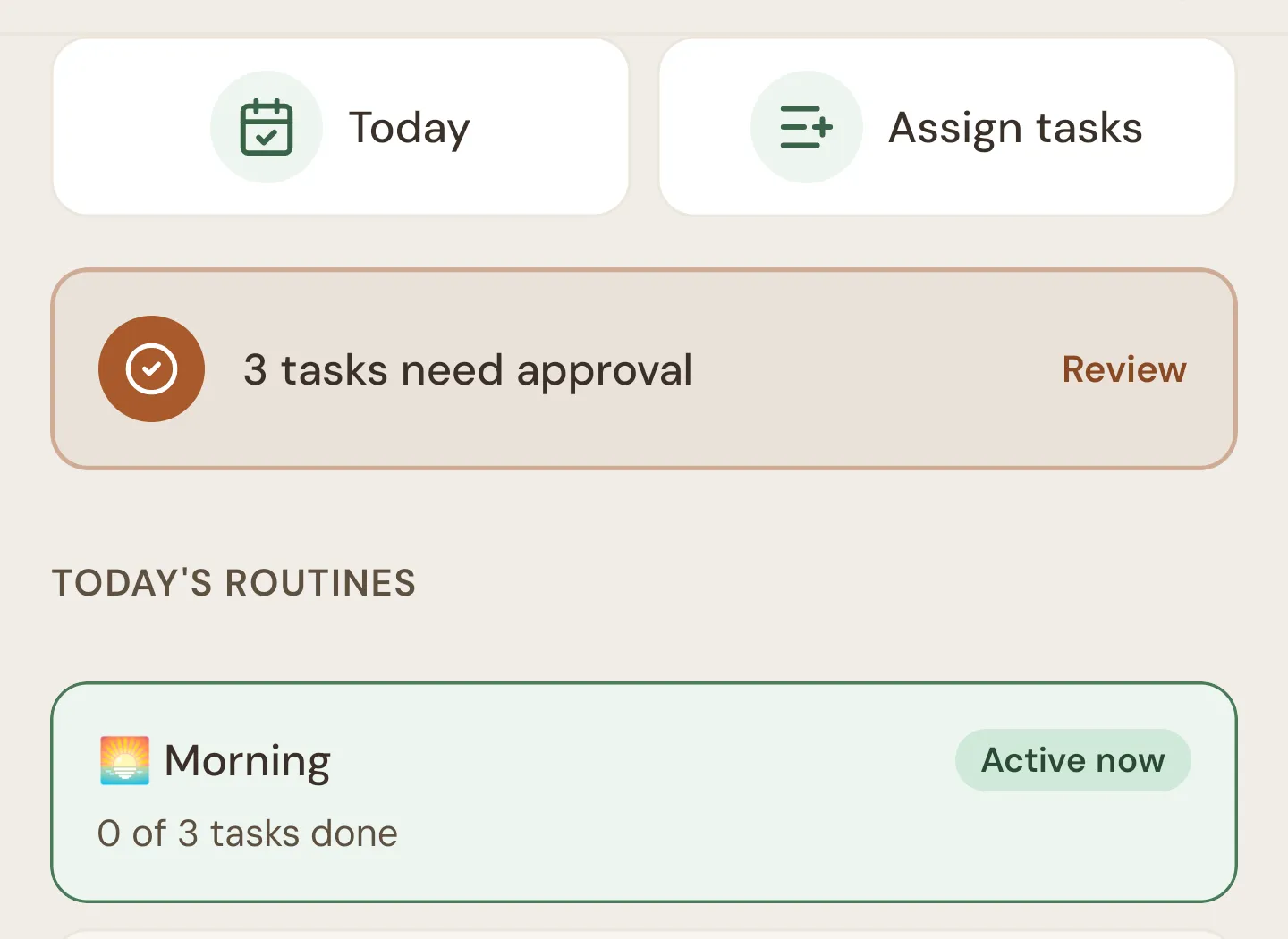
Quick actions
Section titled “Quick actions”The two buttons at the top:
| Button | Opens |
|---|---|
| Today | The Daily screen for today, where you approve, mark done and excuse jobs. |
| Assign tasks | The Task list, where you create jobs and choose who does them. |
Approval banner
Section titled “Approval banner”When a kid has submitted a job today, a banner appears under the buttons: “1 task needs approval” or “3 tasks need approval”. It also appears when kids have started jobs with steps or a timer today but haven’t finished, with a count like “2 in progress”.
Tap Review (or anywhere on the banner) to open the Daily screen.
Today’s routines
Section titled “Today’s routines”Under TODAY’S ROUTINES you’ll see the routines that are running now and the ones still to come today. Routines that have already finished for the day aren’t shown.
- A routine that’s running now is highlighted, with an Active now badge and a count like “2 of 5 tasks done”. If nothing is scheduled in it today, it says “No tasks scheduled right now”.
- A routine later today shows its times, like “3pm – 5pm”.
Tap a routine to open the Daily screen scrolled to that routine. Routines and their times are set up in Routines.
By kid
Section titled “By kid”Under BY KID, each kid gets a card.
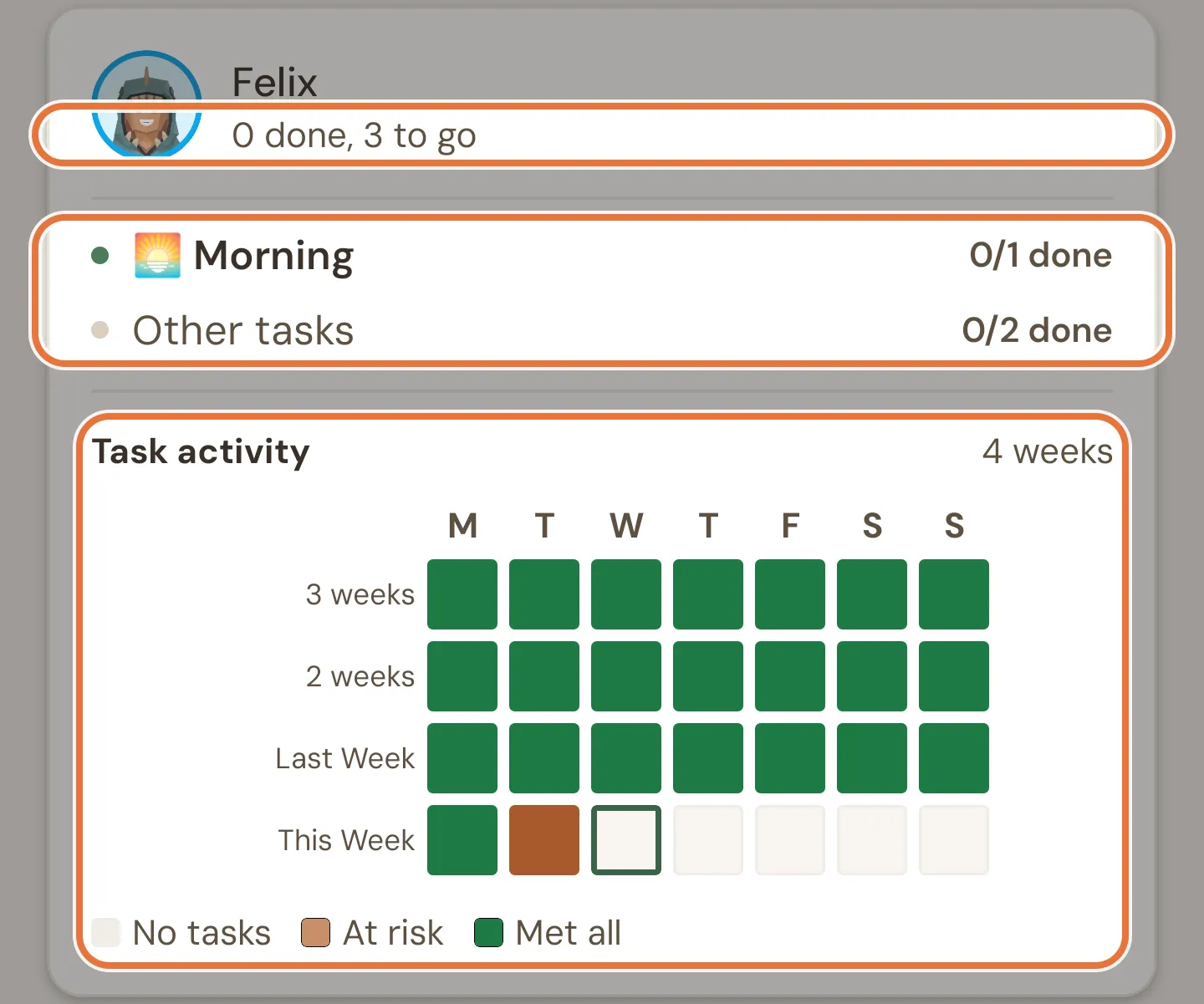
The line under the kid’s name sums up today:
| It says | Meaning |
|---|---|
| ”2 done, 3 to go” | How many of today’s jobs are approved (or excused), and how many are left. |
| ”All 5 done!” | Everything scheduled for today is done. |
| ”1 pending approval” | Nothing else is scheduled today, but a job is waiting for you. |
| ”No responsibilities today” | Nothing is scheduled for this kid today. |
Below that is a row for each of today’s routines that has jobs for this kid. The routine running now is highlighted and shows progress (“1/3 done”). The others show how many jobs they hold (“4 tasks”). Jobs that aren’t in one of today’s routines are grouped as Other tasks, which shows its progress too (“0/2 done”).
Tap the kid’s name or picture to open their page on the Tasks tab.
Responsibility heatmap
Section titled “Responsibility heatmap”At the bottom of each kid card, Task activity shows the last four weeks of responsibilities, one square per day. Rows are labelled from oldest to newest, ending with Last Week and This Week.
| Colour | Meaning |
|---|---|
| Green | Every responsibility that day was approved or excused (Met all). |
| Copper | At least one was missed (At risk). The darker the square, the bigger the share that was missed. |
| Light grey | No responsibilities that day (No tasks). |
| Outlined, empty | A day still to come this week, or today while some of its jobs are still undone. |
Today’s square has a thicker outline. Days of the week with no responsibilities in any of the four weeks are drawn as narrower columns.
Tap a day to open the Daily screen on that date and sort it out. Days before your family joined Quiddo can’t be opened.
Nothing scheduled
Section titled “Nothing scheduled”If there are no routines left today and no kids to show, the tab says “No tasks scheduled for today”. Pull down on the screen to refresh at any time.