
Savings goals
A savings goal is something a kid is saving for, with a target amount and an optional photo. It lives in one of their buckets. Money put toward a goal stays in that bucket; it’s just set aside, so it can’t be spent on anything else by accident.
Open the goals list from the Family tab, under Setup › Goals setup. For the full story, from picking the thing to buying it, see Saving for the big thing.
Goals list
Section titled “Goals list”The Goals screen has two tabs: Active and Archived. Pull down to refresh.
On Active, goals are grouped under each kid. Each goal shows a progress ring, its name, and how much is saved, like “$30.00 of $80.00”. Goals that have reached their target sit in a Funded! group under the kid, with a Goal reached! badge.
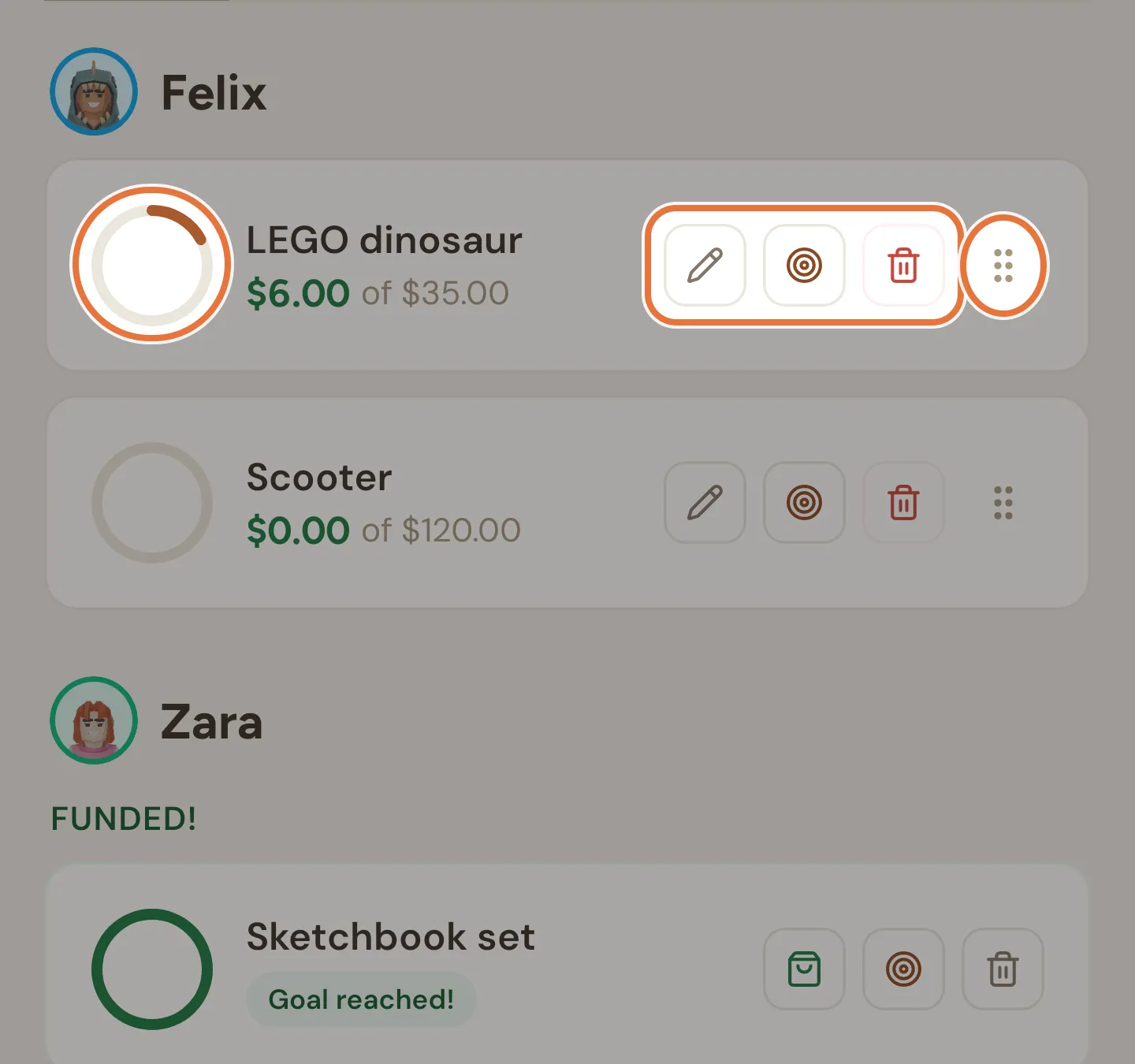
Tap a goal’s name to open its page. The icons on the right:
| Icon | Shows on | What it does |
|---|---|---|
| Shopping bag | Reached goals | Buys it at the target price, after you confirm |
| Pencil | Goals still saving | Edits it |
| Target | Every goal | Raises the target |
| Bin | Every goal | Abandons it (still saving) or archives it (reached) |
| Grip handle | Goals still saving | Drag to change the funding order |
The round + button at the bottom of the Active tab starts a new goal.
Funding order
Section titled “Funding order”Within each kid, press and hold a goal’s grip handle and drag it up or down. Only goals that are still saving can be moved.
The order matters when money leaves a bucket. If a spend, a transfer out or a reversal takes the bucket below the total set aside for its goals, Quiddo takes money back from the goals to match, starting with the goal lowest in the list.
It doesn’t decide who gets new money first. See Auto-fund.
Creating a goal
Section titled “Creating a goal”Tap the + button on the goals list, Add goal on the Family tab (it appears when there are no active goals), or + Goal on a bucket’s page, which picks the kid and bucket for you.
| Field | What to enter |
|---|---|
| Kid | Who the goal is for. The first kid is picked to start with. |
| Account | The bucket the goal lives in, with its balance shown. The first bucket is picked to start with. |
| Goal Name | What they’re saving for. |
| Target Amount | How much it costs. The field does sums, so 75+5 works. |
| Cover Photo (optional) | Camera or Gallery. Remove takes it off again. |
| Target Date (optional) | A deadline, like a birthday. It can’t be in the past. Tap the ✕ to clear it. |
Tap Create Goal. It stays greyed out until there’s a kid, a name and a target above zero. A kid with no buckets shows “This kid has no accounts yet. Add one before creating a goal.”
Only parents can create goals. Auto-fund starts off; switch it on from the goal page.
Goal page
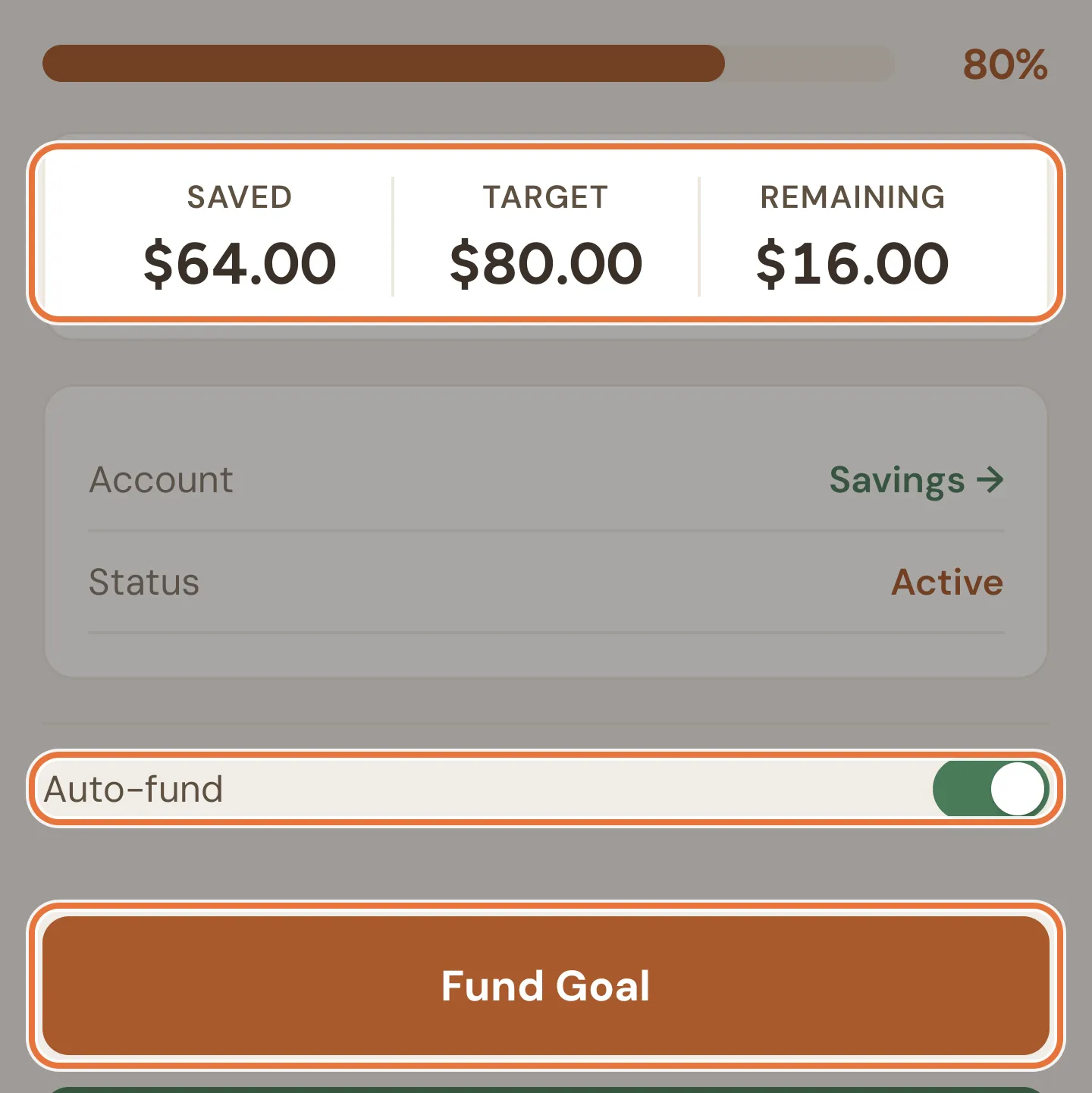
Section titled “Goal page”Tap a goal to open it. From top to bottom:
- The cover photo, if it has one, then the name and the kid.
- A progress bar with the percentage saved.
- Saved (funded so far), Target, and Remaining.
- Target Date, if set, and Account, the bucket it lives in. Tap the bucket to open its page.
- Status: Active, Completed or Archived.
- The Auto-fund switch, while the goal is still saving.
- Buttons for what you can do next: Buy it!, Fund Goal, Edit Goal, and Abandon Goal or Archive Goal.
Funding a goal
Section titled “Funding a goal”Fund Goal sets aside some of the bucket’s free money for this goal. Nothing moves between buckets.
The sheet shows “Up to $20.00 available”: the most you can put in, which is the smaller of the bucket’s free money and what the goal still needs. The amount starts at that maximum. Type less, or tap Max to put it back. The amount field does sums. Tap Fund $20.00 to confirm.
Fund Goal only appears when there’s something to put in. If the bucket has no free money, add some or transfer it in from another bucket first.
You can also fund goals with the Fund button on the bucket’s page, and kids can fund (and un-fund) their own goals from their Quiddo page.
Auto-fund
Section titled “Auto-fund”With Auto-fund on, money arriving in the goal’s bucket is set aside for the goal automatically. That includes pocket money, rewards for paid jobs, money you add, and transfers in.
- If the bucket has more than one auto-fund goal, new money is shared evenly between them, not one at a time.
- A goal stops taking money once it reaches its target, and the others share the rest.
- Anything left once every auto-fund goal is full stays free in the bucket.
Auto-fund is off for new goals. The switch only shows on goals that are still saving and linked to a bucket.
Buying a goal
Section titled “Buying a goal”When a goal reaches its target it moves to Funded! in the list. Once you’ve bought the thing, open the goal and tap 🛍️ Buy it!.
- Check the Final purchase price. It starts at the target; change it if the item was on sale or cost more.
- If the price is more than what’s saved, choose how to handle the difference:
- I’ll cover the difference: only the saved amount comes out of the bucket.
- Take it from the account: the full price comes out of the bucket. The bucket needs enough in it to cover that.
- Tap 🛍️ Buy it!.
The purchase is recorded as a spend from the bucket, “Bought: Skateboard deck”, and the goal moves to the Archived tab.
Raising the target
Section titled “Raising the target”Tap the target icon on the goals list. The Raise Target screen shows the current target. Type a new one (it has to be higher), then tap Save new target.
This works on goals that have already been reached. If the new target is more than what’s saved, the goal goes back to saving, and your kid gets to celebrate again when it fills.
Editing a goal
Section titled “Editing a goal”Edit Goal (or the pencil on the list) lets you change the Goal Name, Target Amount, Cover Photo, Target Date and Account. Tap Save Changes.
You can’t move a goal to a different kid. Edit isn’t offered once a goal is reached; raise the target instead.
Abandoning or archiving
Section titled “Abandoning or archiving”The bin on the list, or the button at the bottom of the goal page:
- Abandon Goal, for a goal that’s still saving. Whatever was saved becomes free money in the bucket again. Nothing is spent. A goal with nothing saved is deleted rather than archived.
- Archive Goal, for a goal that’s been reached but you don’t want to buy. What was saved becomes free money again, and the goal moves to the Archived tab, where you can restore it later.
Either way, Quiddo asks you to confirm first.
Archived goals
Section titled “Archived goals”The Archived tab lists bought, archived and abandoned goals under each kid, with what was saved (or the price paid) and the date, marked “Archived” or “Abandoned”.
- The restore arrow brings a goal back to Active. It comes back with nothing saved, so fund it again from the bucket.
- The bin deletes it for good. Quiddo asks first; tap Delete permanently.