
A kid's page
A kid’s page is everything about one kid: their money, how this week’s pocket money is tracking, their jobs, and what’s happened lately. Open it by tapping a kid’s name or balance on the Money tab, or View on their tile on the Family tab.
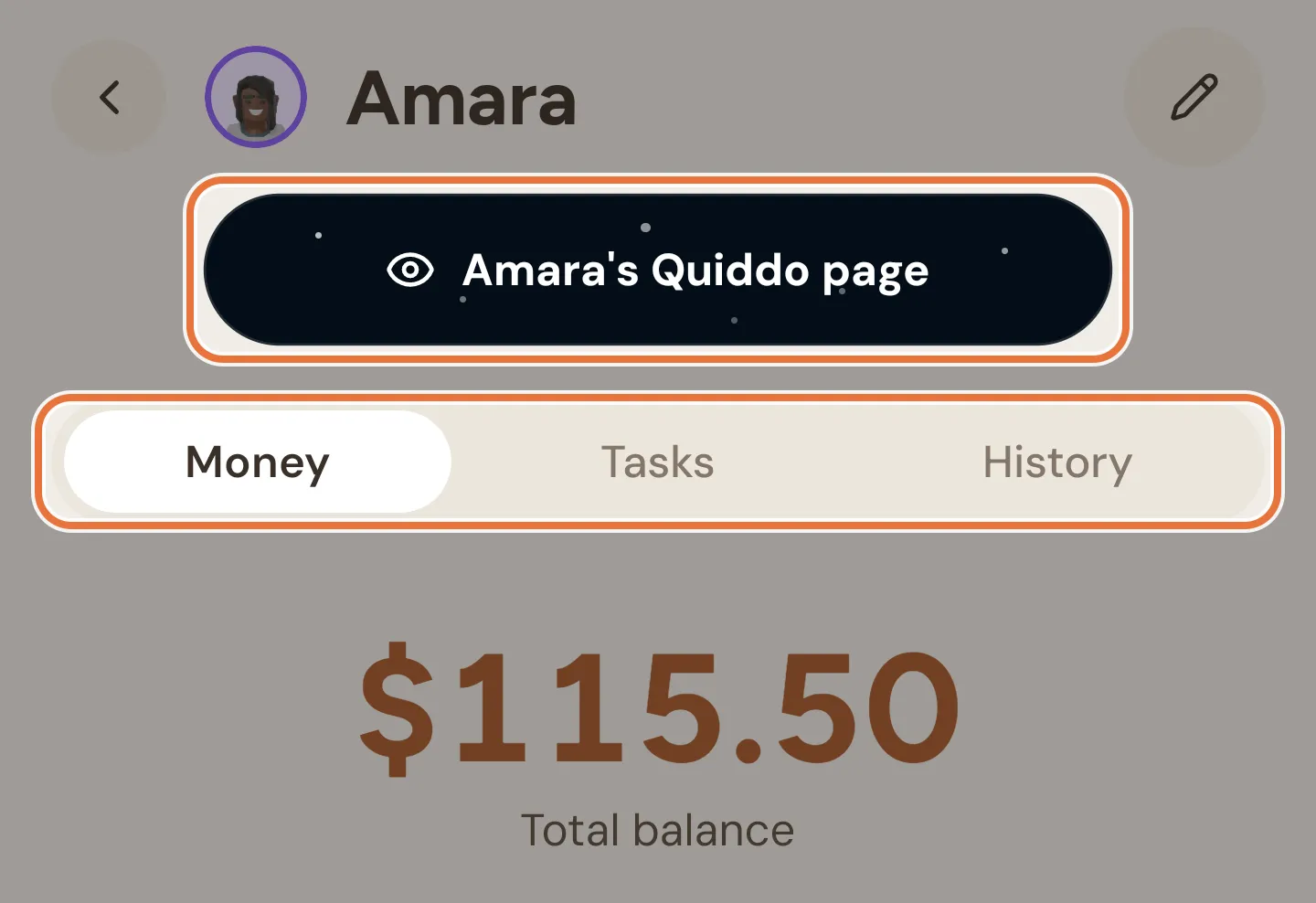
Header
Section titled “Header”The top row has a back arrow, the kid’s avatar and name, and a pencil. The pencil opens Editing a kid, where you change their name, buckets, money routing, devices and logins.
Pull down anywhere on the page to refresh it.
Quiddo page button
Section titled “Quiddo page button”The dark, starry button under the header reads “Mia’s Quiddo page” (with the kid’s name). It opens the page your kid sees, on your phone, so you can hand it over to a kid who doesn’t have their own device. See Your kid’s Quiddo page.
Money, Tasks and History
Section titled “Money, Tasks and History”The switch below the Quiddo page button changes what the rest of the page shows:
| View | What’s in it |
|---|---|
| Money | Total balance, each bucket, any unallocated money, and the pocket money card. This is where the page opens. |
| Tasks | The pocket money check and every job assigned to this kid. |
| History | This kid’s recent activity. |
Tapping the pocket money row on the Money tab opens the page straight on Tasks.
Buckets
Section titled “Buckets”On Money, the big number is the kid’s Total balance: every bucket added together, plus any money that hasn’t been put in a bucket yet.
Under Buckets, each bucket gets a card showing:
- The bucket’s name and balance.
- A goals line, like ”🎯 2 goals · $30.00 of $80.00 funded”, when the bucket has savings goals that aren’t finished yet.
- The last three transactions in that bucket, with the amount and how long ago.
Tap a bucket card to open that bucket’s page, where you can transfer money, fund goals and see its full history.
Unallocated money
Section titled “Unallocated money”When the kid has money that isn’t in any bucket yet, a dashed yellow card appears below the buckets. It shows Unallocated, where the money came from (“From Birthday money”) and the total amount waiting.
Tap Allocate to split it into buckets. It opens the Allocate Money screen, described in Allocating unallocated money.
Pocket money card
Section titled “Pocket money card”If the kid has a pocket money schedule, the last card on Money summarises it:
- The amount and whether it’s weekly or monthly.
- A status badge: On track, At risk, Pending, Withheld or Released. (On track here also covers pay day when everything’s done.)
- For weekly pocket money, when it’s paid: “Every Friday at 9am”.
- The next payment date: “Next payment: Fri 3 Oct”.
- If the pocket money is split, a chip for each bucket and its share, like “Savings $4.00”.
Tap the card to switch to Tasks and see the pocket money check in full. To change the schedule itself, see Pocket money setup.
Pocket money check
Section titled “Pocket money check”At the top of Tasks, the Pocket money check explains where this cycle’s pocket money stands and what’s holding it up.
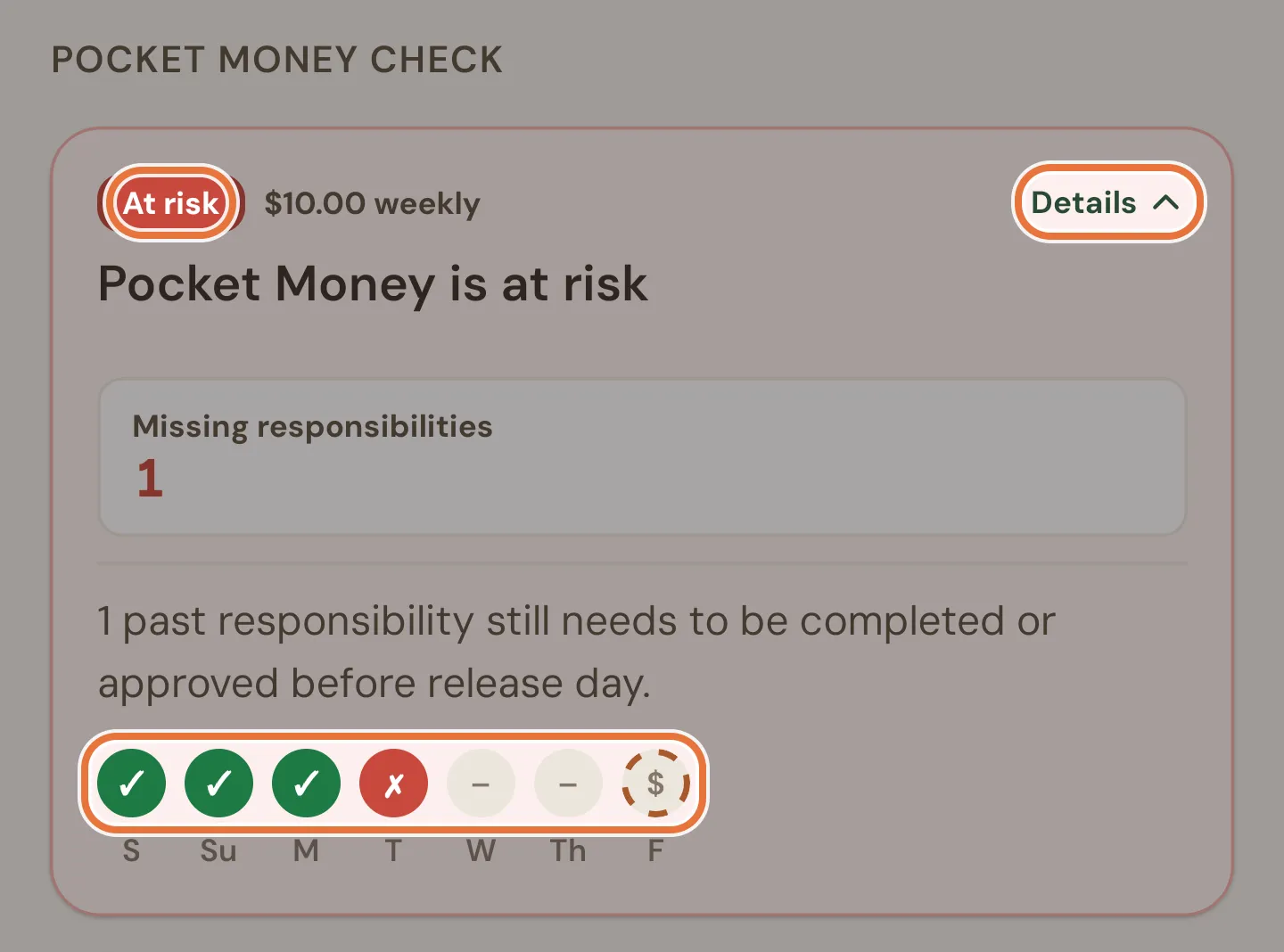
The card shows a badge, the amount, and a one-line summary:
| Badge | Summary |
|---|---|
| Ready | Pocket Money is ready to release |
| On track | Pocket Money is on track |
| At risk | Pocket Money is at risk |
| Pending | Pocket Money is pending |
| Withheld | Pocket Money was withheld |
| Released | Pocket Money has been released |
If no responsibilities are assigned to the kid, it says “Pocket Money is not waiting on responsibilities” instead.
Below that is a count that changes with the state: Approved responsibilities, Missing responsibilities (at risk), Responsibilities to review (pending) or Missed responsibilities (withheld). On pay day, when the only jobs left are today’s, an at-risk card reads “N responsibilities still to do today before Pocket Money is paid” and the count is Still to do today. If you’ve excused any this cycle, Excused responsibilities appears next to it.
Tap Details to see a sentence explaining the state and a row of day dots covering the cycle, ending on pay day:
| Dot | Meaning |
|---|---|
| ✓ | Every responsibility that day is ticked off, or there weren’t any |
| ✗ | At least one responsibility that day wasn’t done |
| $ | Pay day |
| – | Still to come, including today while there are jobs left to do (pay day excepted) |
Tap any dot to open the Day summary for that date. It lists the day’s Missed responsibilities, each with Approve and Excuse, plus how many were completed and excused. Open daily view jumps to the Daily screen on that date.
For what each state means and how pay day works, see the pocket money status table.
Assigned tasks
Section titled “Assigned tasks”Below the pocket money check, the kid’s jobs are grouped by routine (Morning, After School and so on), with anything not in a routine under Other. Each row shows:
- The job’s emoji and name.
- Required for responsibilities, or the reward (”+$2.00”) for paid jobs.
- 3 steps (or however many) if the job has steps. Tap it to list the steps and their time estimates without leaving the page.
- A dot for each day this week, for responsibilities and for jobs set to particular days. Green ✓ is done or excused, amber ~ is waiting for approval, red ✗ is a missed responsibility, grey ✗ is a missed job that isn’t a responsibility, a ringed dot is today and plain grey is still to come.
- How often it repeats, for jobs that aren’t responsibilities.
With nothing assigned, you’ll see “No tasks assigned yet”. To assign more, use Assign at the bottom (see Bottom bar).
Task details
Section titled “Task details”Tap any job to open its details sheet. At the top are its name, its type (Required, Earns or No reward) and the reward. Once Quiddo has timed the kid doing it, Avg completion time shows how long it usually takes them. Jobs with steps list them under Steps.
Responsibilities get a This week row of day dots. Tap a day to see what happened (who approved it, when it was submitted, any note, how long it took) and act on it:
| The day is | Buttons |
|---|---|
| Missed, or due today | Approve, Excuse |
| Pending review | Approve, Excuse, Decline |
| Done | Unapprove |
| Excused | Unexcuse |
| Upcoming | None yet |
Approve on a missed or due day marks it done and approved in one go. Excuse asks you to confirm first. If the day can’t be excused, you’ll see “This day cannot be excused yet”: days still to come can’t be excused, and today can only be excused once the job’s routine for today has finished.
If you unapprove a job the kid did step by step, Quiddo asks whether to Keep progress (it goes back to waiting for approval, steps intact) or Reset task (the completion is removed so they can start again).
One-off jobs (paid or no reward) get a Completion section instead, showing the day it’s scheduled for or the day it was done. Mark as done today ticks it off; Mark as not done undoes it. A one-off with a date can only be marked done on that date.
For approving, declining and excusing across all your kids at once, the Daily screen is quicker.
History
Section titled “History”History lists this kid’s recent activity: money in and out, jobs, pocket money and goals, newest first. Tap an entry for the full details. From the details you can:
- Edit transaction on a spend, to change the amount or description or delete it. See Editing or deleting a spend.
- Mark as not done on a job that was approved.
- Release pocket money on a withheld payment.
For the whole family’s history with filters, use History.
Bottom bar
Section titled “Bottom bar”A bar pinned to the bottom of the screen changes with the view:
| View | Shows | Buttons |
|---|---|---|
| Money | Total balance | Add adds money for this kid. Spend records a spend, with their default spending bucket picked. |
| Tasks | How many of today’s jobs are done (“2 of 5 today”) and how many are assigned | Assign opens the Task list in assign mode for this kid. |
| History | Nothing | None |
Add and Spend are covered in Adding money and recording spends.