
Families and switching
Most households only ever need one family. You’d have more than one if you run a separate “Nana bank” for the grandkids, say, or if you’ve been invited into someone else’s family as well as running your own. Everything in Quiddo (kids, jobs, pocket money, goals) belongs to one family, and the app shows one family at a time: the active family.
For shared custody, one family with both parents in it usually works better than two. See Two households, one set of kids.
Switching families
Section titled “Switching families”There are two places to switch:
- Family tab: tap the button with the people icon next to your family’s name. The Switch family sheet lists each family with your role in it (Admin or Member), and ticks the current one.
- Profile menu: tap your avatar in the top-right corner. Under Switch family, tap a family’s name. The current one has a green dot and a tick.
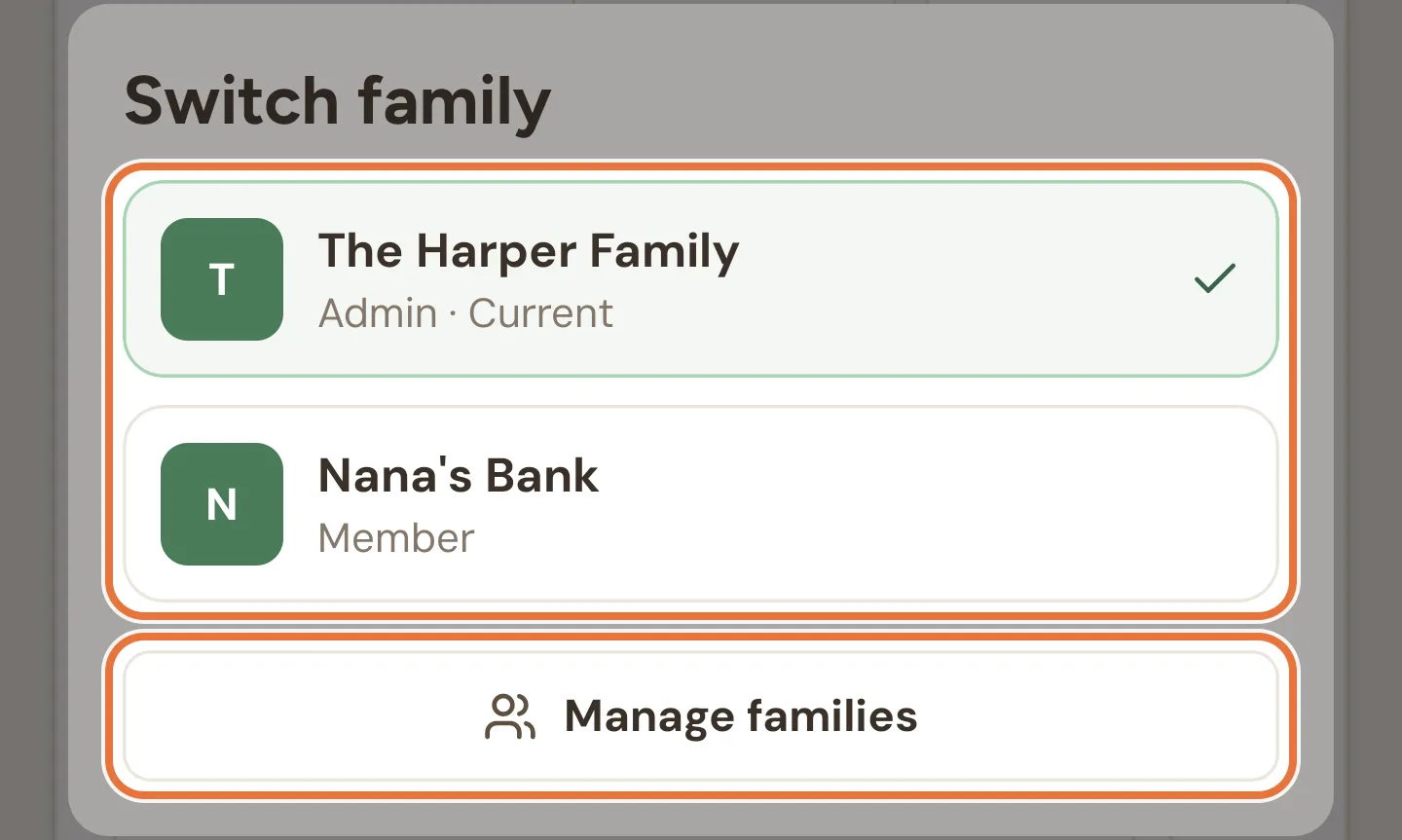
Switching reloads everything for the new family, and keeps you on the same kind of screen, so if you were on the Money tab you’ll see the other family’s Money tab.
If you’re only in one family, the profile menu lists it under Families instead.
Manage families
Section titled “Manage families”Manage families lists every family you’re in. Open it from the profile menu, or from the bottom of the Switch family sheet.
Each family shows its first letter, its name, an Admin badge if you’re the admin, how many kids it has, and Active for the one you’re in now. The active family has a green border.
| Button | What it does |
|---|---|
| View | Switches to that family and opens its Family tab |
| Edit | Opens the Family tab |
| + New (top right) | Starts a new family (see below) |
Pull down to refresh the list.
Creating a family
Section titled “Creating a family”Tap New family in the profile menu, or + New in Manage families.
| Field | Options |
|---|---|
| Family name | Required, for example “The Smiths”. |
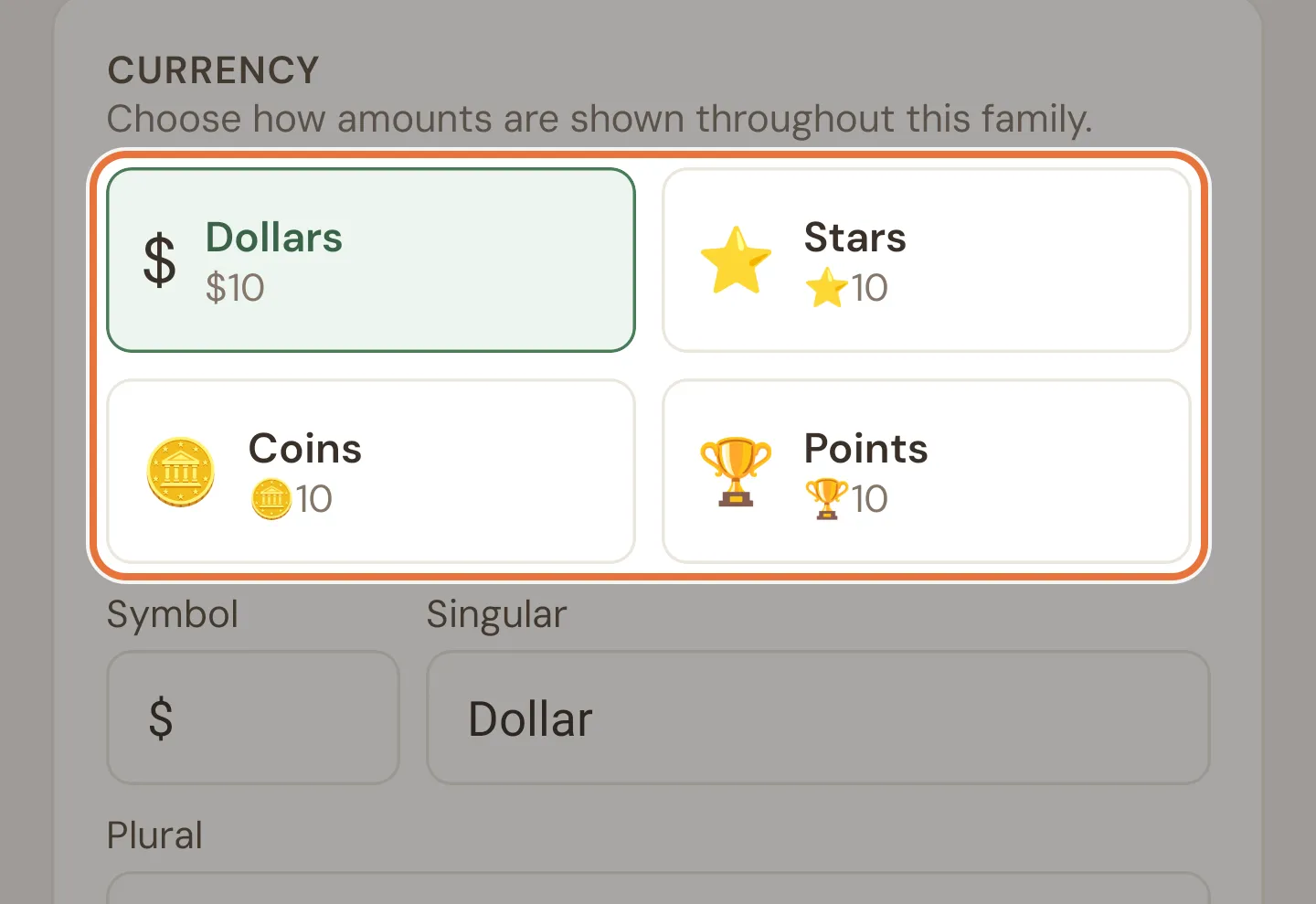
| Currency | A preset (below), or your own Symbol, Singular and Plural names. |
| Use whole numbers only | No cents. Useful for stars and points. |
| Kids (optional) | Tap Add Kid for each kid, give them a name, and pick one of six colours. You can add kids later instead. |
The currency presets:
| Preset | Symbol | Whole numbers |
|---|---|---|
| Dollars | $ | Off |
| Stars | ⭐ | On |
| Coins | 🪙 | On |
| Points | 🏆 | On |
Picking a preset fills in the symbol and names, which you can then change. The family’s time zone is set from your phone.
Tap Create Family. Quiddo switches you to the new family and takes you through three setup steps: Set up pocket money, Add some tasks, and You’re ready to begin. The first two have Do this later if you’d rather skip them for now.
The new family is yours: you’re its admin, and it’s covered by your subscription. See Little kids: stars, not dollars for when a non-money currency makes sense.
Family limits
Section titled “Family limits”- You can be the admin of up to three families. After that, New family is greyed out and says Family limit reached, with “Delete a family to make room.”
- You can always create your first family. For a second or third, you need an active subscription or trial. Without one, New family takes you to Billing with “You need an active subscription or trial to create another family.”
- There’s no limit on how many families you can join as a co-parent.
Families are deleted from the Danger zone on the Family tab.
Family details
Section titled “Family details”The admin can change a family’s details. On the Family tab, tap the pencil next to Family details to open the Family details screen:
| Field | What it’s for |
|---|---|
| Family name | Shown in the switcher, the menus and on the family screen. |
| Timezone | The time zone pocket money release times use. Typed as a name like Australia/Sydney or Australia/Perth. |
| Currency | The same presets and fields as when creating a family. |
Tap Save to keep the changes, or Cancel.
Co-parents don’t get the pencil. The section shows the family’s name and currency with “Only the family admin can edit these settings.”