
Signing in and codes
The sign-in screen is where everyone starts: parents with an email and password (or Google or Apple), and devices joining with a code. This page covers each way in.
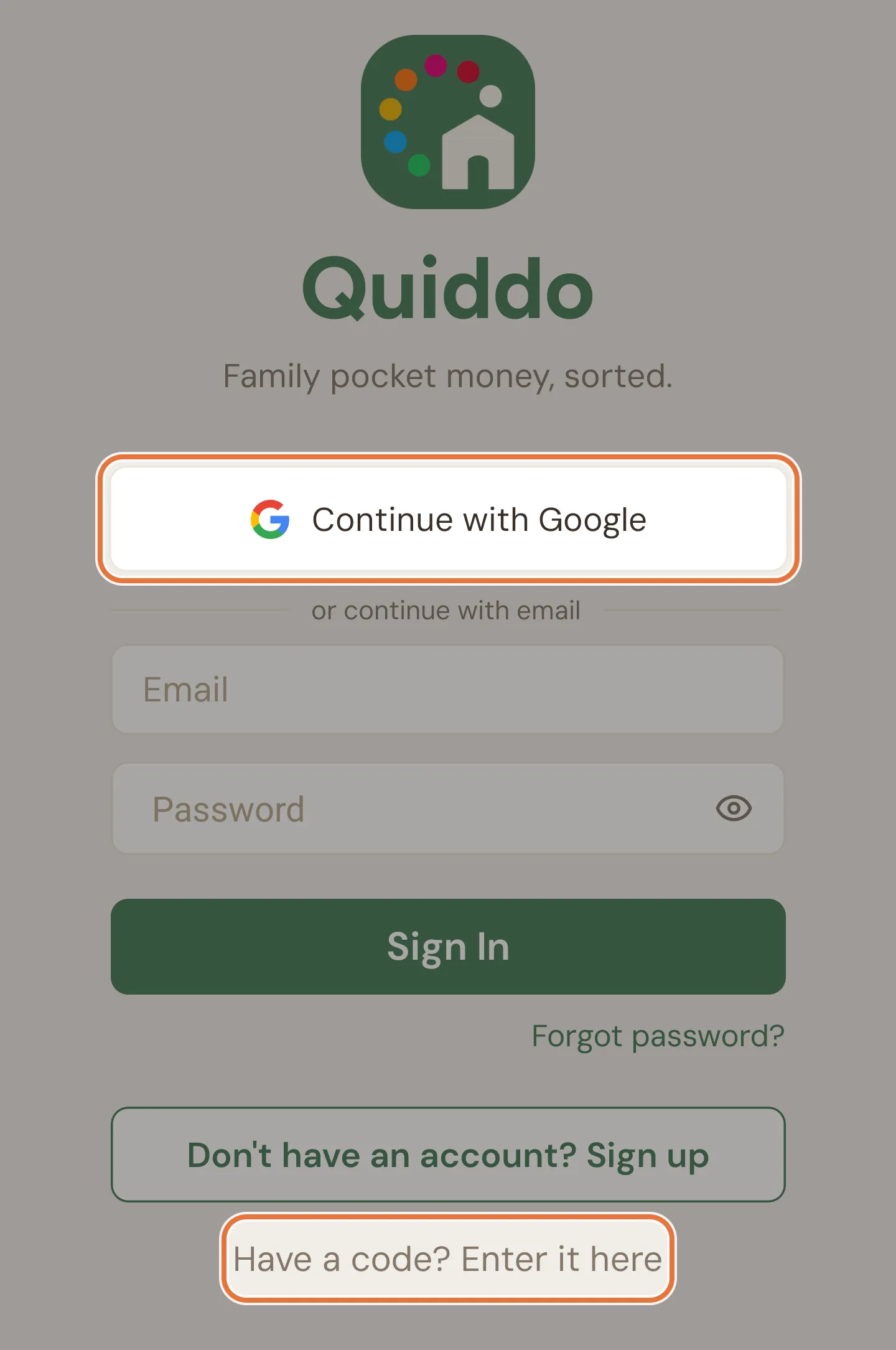
Signing in
Section titled “Signing in”Enter your Email and Password and tap Sign In. The eye icon in the password box shows or hides what you’ve typed.
Below that:
| Link | What it’s for |
|---|---|
| Forgot password? | Reset your password. |
| Don’t have an account? Sign up | Create an account. |
| Have a code? Enter it here | Link a kid’s device or a family screen, or join a family. See Codes. |
If you see “Your session has expired. Please sign in again.”, you’ve been signed out; just sign in again. Too many wrong tries in a row and Quiddo asks you to wait a moment before trying again.
Google and Apple
Section titled “Google and Apple”At the top of the sign-in screen are Continue with Google and, on iPhone and iPad, Sign in with Apple. The first time you use one, it creates your Quiddo account.
If Quiddo can’t get your email address from your Google or Apple account, it asks for it on a One more step screen. Enter your email and tap Continue.
Creating an account
Section titled “Creating an account”On the sign-up screen, either use Register with Google (or Apple’s Sign up with Apple on iPhone), or fill in Name, Email, Password and Confirm Password and tap Create Account.
The sign-up screen also asks how you heard about Quiddo. It’s optional, so you can leave it blank. If you use Google or Apple, Quiddo asks once when you start setting up your family.
Quiddo then walks you through setting up your family. See Your first ten minutes.
If someone has invited you to their family, you don’t need to sign up first. Use their code (see Joining a family).
Forgotten password
Section titled “Forgotten password”- Tap Forgot password? on the sign-in screen.
- Enter your email and tap Email Password Reset Link. You’ll see “Password reset link sent to your email.”
- Follow the link in the email to choose a new password.
If you signed up with Google or Apple, you don’t have a Quiddo password; use the same button you signed up with.
Two-factor codes
Section titled “Two-factor codes”If you’ve turned on two-factor authentication in Profile and settings, signing in takes you to Two-Factor Authentication:
- Type the six-digit code from your authenticator app and tap Verify.
- Trust this device for 30 days is on by default. Leave it on and this phone won’t ask for a code for 30 days.
- Lost your phone? Tap Use a recovery code and type one of your recovery codes instead. Use an authentication code switches back.
Verifying your email
Section titled “Verifying your email”Until you confirm your email address, the top of the app shows an Unverified badge. Tap it to open Verify Your Email.
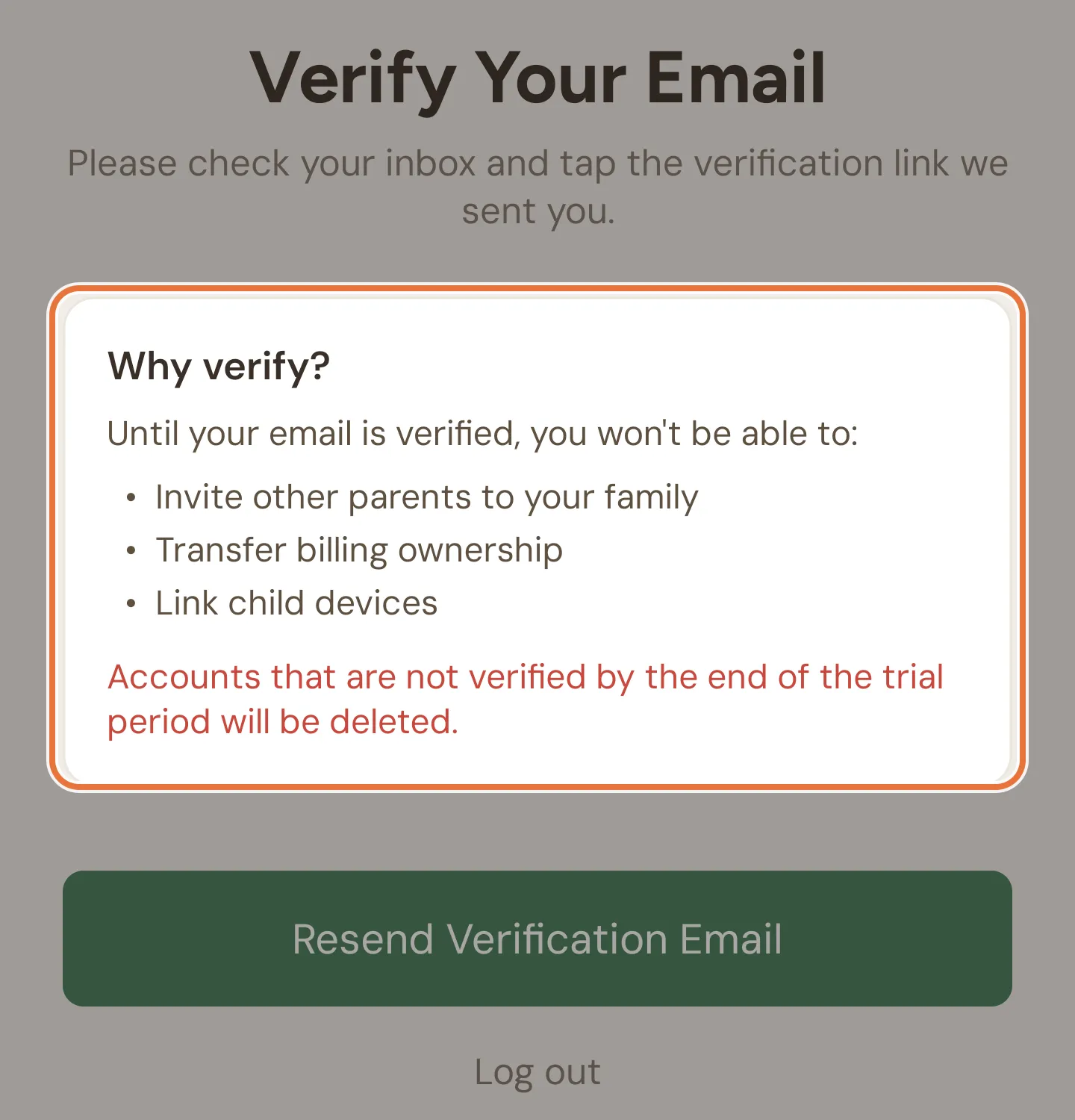
Until you verify, you can’t:
- Invite other parents to your family.
- Transfer billing ownership.
- Link kids’ devices (or family screens).
Accounts that aren’t verified by the end of the trial are deleted.
Tap the link in the email we sent you. If you can’t find it, tap Resend Verification Email. Log out is at the bottom.
Quiddo uses six-character codes (like K7Q2XM) to link things without passwords. There are three kinds, and they all go in the same place: Have a code? Enter it here on the sign-in screen.
| Code for | Made where | What it does |
|---|---|---|
| A kid’s own device | Device linking on the kid’s edit screen | Signs the device in as that kid |
| A co-parent | Share QR Code under Invite a parent on the Family tab | Lets another adult join your family |
| A family screen | Generate Link Code under Family screen on the Family tab | Turns the device into a family screen |
Every code:
- Lasts 10 minutes, with a countdown next to it.
- Works once.
- Replaces any earlier unused code of the same kind for that kid or family.
- Needs a verified email address on the parent’s account to generate.
On the Enter your code screen, tap Scan QR Code to use the camera (Quiddo asks for camera permission the first time), or type the code. Quiddo looks it up as soon as all six characters are in, then shows what it’s for. Enter a different code starts again, and Back to sign in goes back.
If it says “Invalid or expired code.”, ask for a fresh one.
Linking a kid’s device
Section titled “Linking a kid’s device”After the code, the device shows Link device with the kid’s name and family. Tap Link as and their name (for example Link as Mia). The device goes straight to their Quiddo page, and stays signed in with no password.
If the kid taps Log out, you’ll need to make a new code to link it again.
Joining a family
Section titled “Joining a family”A co-parent code shows Join and the family’s name. Fill in Your name, Email and Password (at least 8 characters), and tap Join Family.
- New to Quiddo? This creates your account.
- Already have an account? Use your existing email and password.
You can also scan the QR code with your phone’s camera. That opens Join a Family with the code already filled in, and the same fields.
Parents can also be invited by email from the Family tab. See Two households, one set of kids.
Setting up a family screen
Section titled “Setting up a family screen”A family screen code shows Link family screen with the family’s name. Tap Set up family screen. The device turns into the family screen straight away. See Family screen.