
Paid jobs, so they can earn a bit extra
Some families skip regular pocket money and pay for jobs instead. Others, like ours, pay pocket money for the everyday stuff and keep a list of paid extras for when someone wants a new game and has a Saturday free. Quiddo handles both.
You set a price on a job. Your kid does it and taps I did it!. You approve it and the money lands in their bucket straight away. No IOUs on the fridge, and no “you still owe me for the car” three weeks later.
You’ll need: a family with at least one kid added. If you also want weekly pocket money, set that up first with Weekly pocket money, with jobs that have to get done.
What you’re setting up
Section titled “What you’re setting up”| Piece | What it does |
|---|---|
| Paid jobs | Tasks with a reward amount. Paid each time they’re done and approved. |
| Anytime jobs | Paid jobs with no schedule. The first kid to claim one gets it for the day. |
| A reward bucket | Where the money goes. You set a default; kids with more than one bucket can choose. |
| Approvals | Your kid says “done”, you check the car is actually clean, the money moves. |
1. Write the price list
Section titled “1. Write the price list”Before you open the app, decide what’s on offer and what each job is worth.
- Price by effort. A job that takes an hour should pay more than one that takes five minutes, however much you personally hate the five-minute one.
- Separate paid jobs from the non-negotiables. Making their bed shouldn’t earn money if it’s already part of the deal for pocket money. Those are responsibilities.
- Start small. Four or five paid jobs is plenty. You can add more once you know which ones they actually do.
A warning from experience: if washing the car pays $20, expect a lot of very clean cars.
2. Create a paid job
Section titled “2. Create a paid job”-
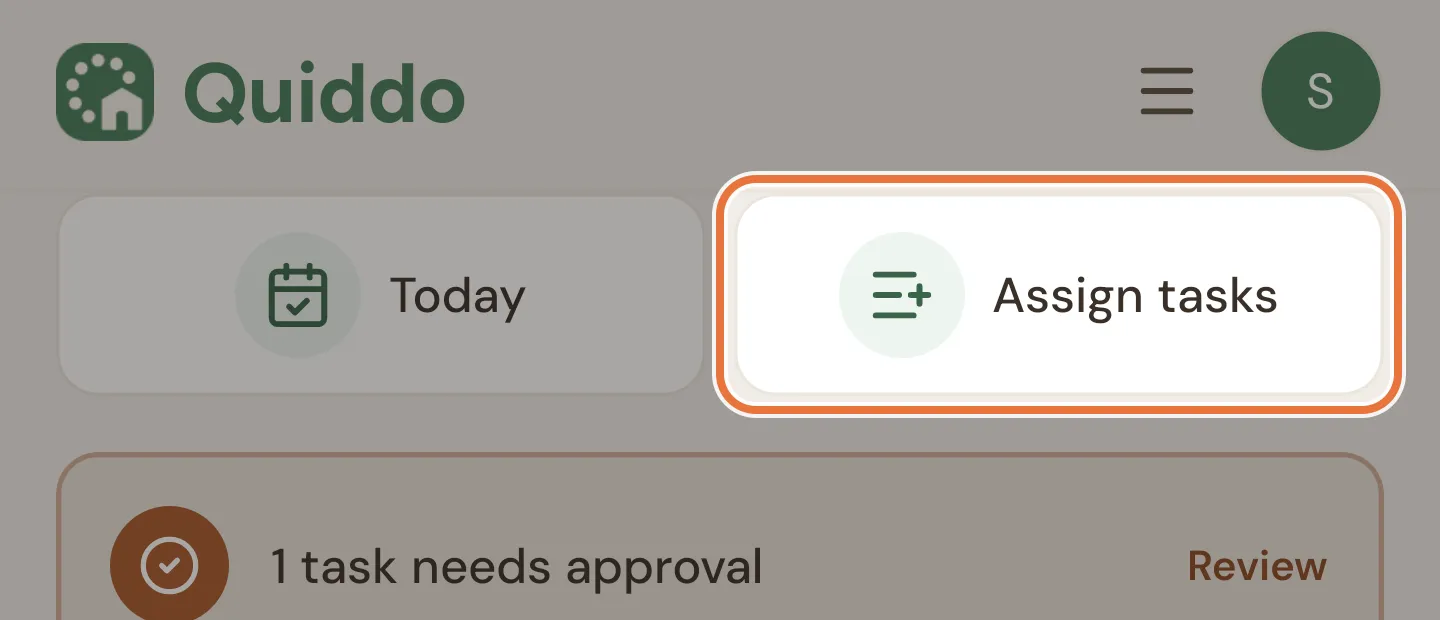
Open the Tasks tab and tap Assign tasks, then the round + button at the bottom right.
-
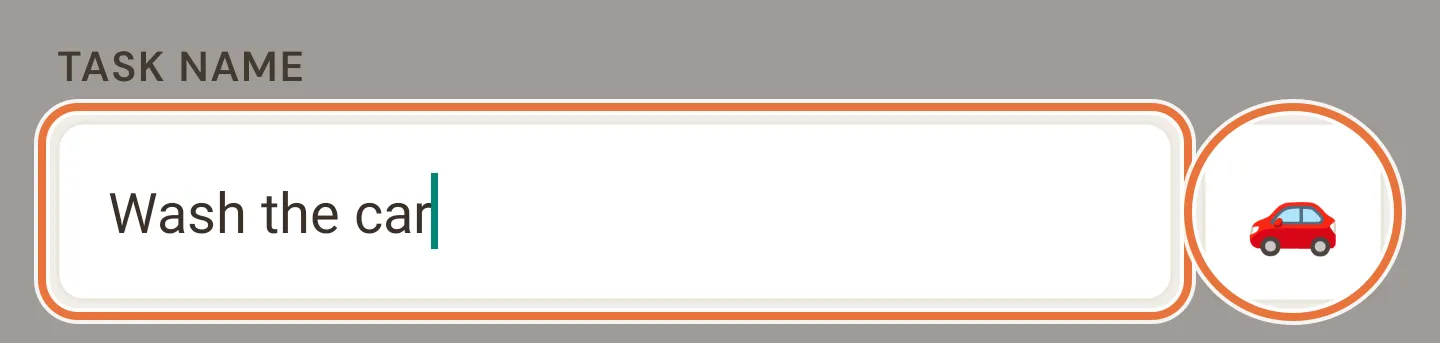
Name the job and pick an emoji. “Wash the car” with a 🚗 works.
-
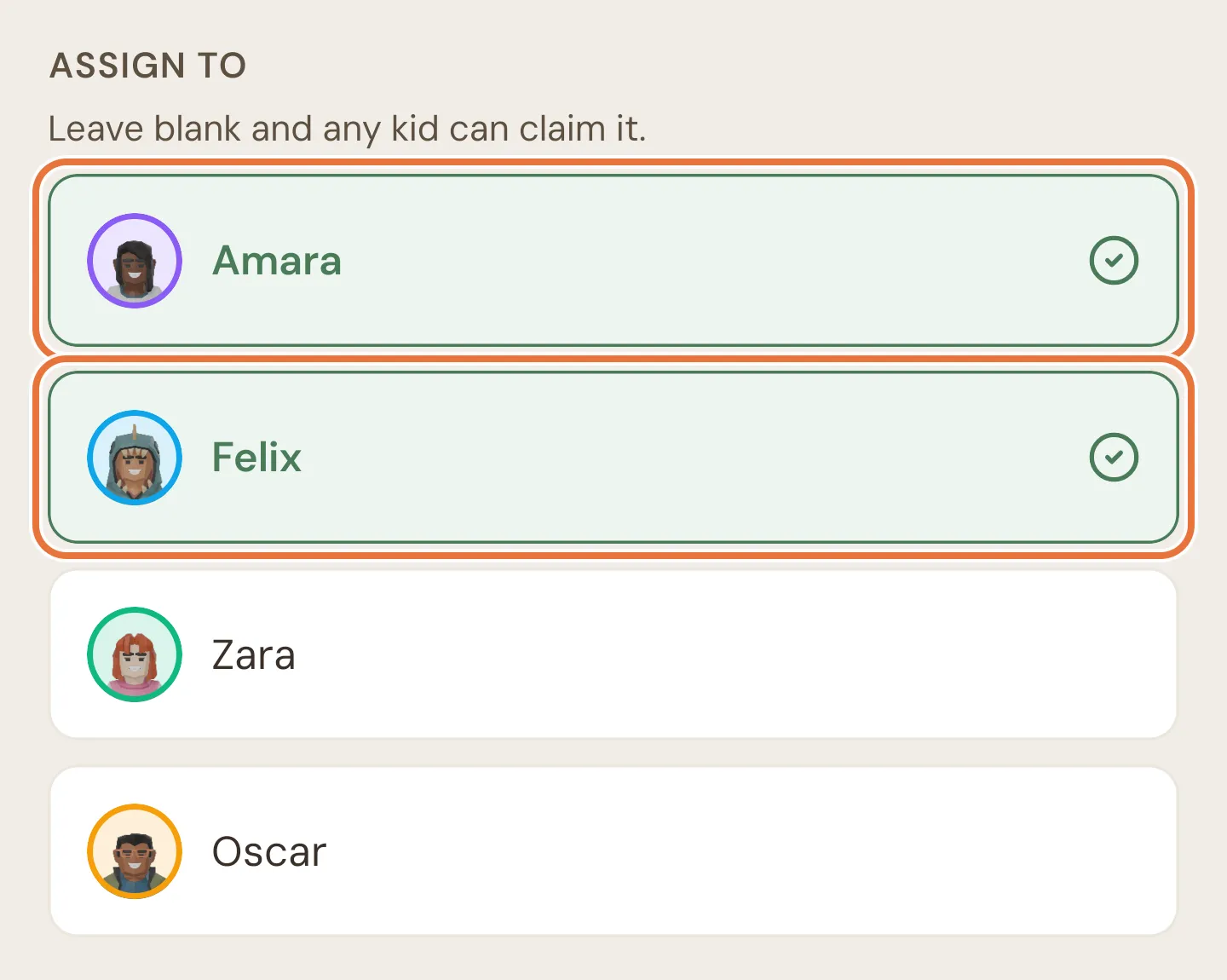
Under Assign to, tap each kid who can do it.
-
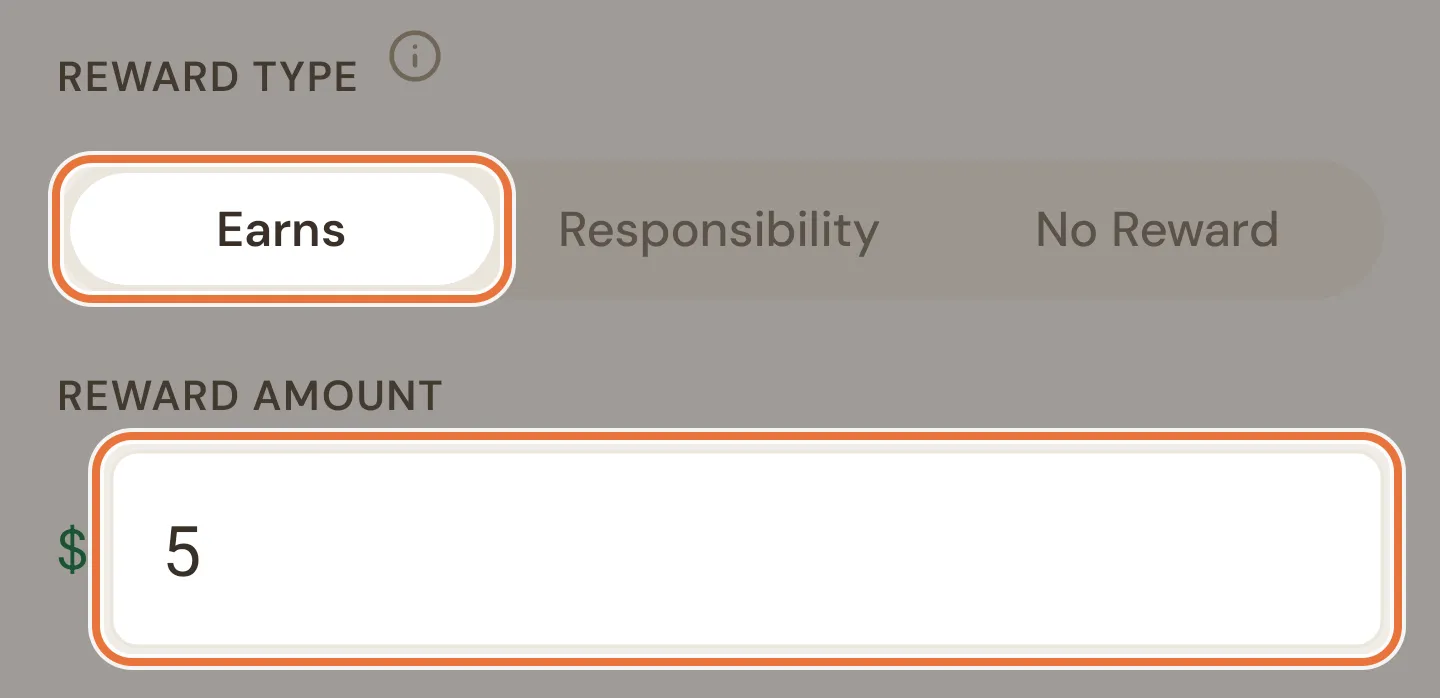
Under Reward type, choose Earns, then enter the Reward Amount.
-
Choose how often it’s available. Weekly with a day or two ticked suits a job like mowing. One-off suits a job that only happens once, like cleaning out the garage. For jobs they can pick up any time, see Anytime jobs below.
-
Decide on Requires approval. Leave it on Yes if you want to check the work before paying.

-
Tap Create Task.
The amount field does sums
The reward amount uses Quiddo’s own keypad. Tap the calculator key to bring up + − × ÷, then type 2+0.5 and it works out $2.50. Handy when you’re splitting a job’s price between a few smaller steps.
No approval means instant pay
With Requires approval set to No, the money goes in the moment your kid taps I did it!. Good for small jobs you trust them on. For anything involving a hose, we’d leave approval on.
Known issue: Reward amount isn’t checked when editing
When you edit an existing paid job, the reward amount isn’t checked or worked out before saving. Type a plain number (like 2.50) rather than a sum, and make sure it’s more than zero.
3. Anytime jobs
Section titled “3. Anytime jobs”Some jobs don’t need a schedule. The spare bike needs cleaning, the recycling needs sorting, the dog could always do with another walk. Make these anytime jobs and whoever wants to earn can claim them.
-
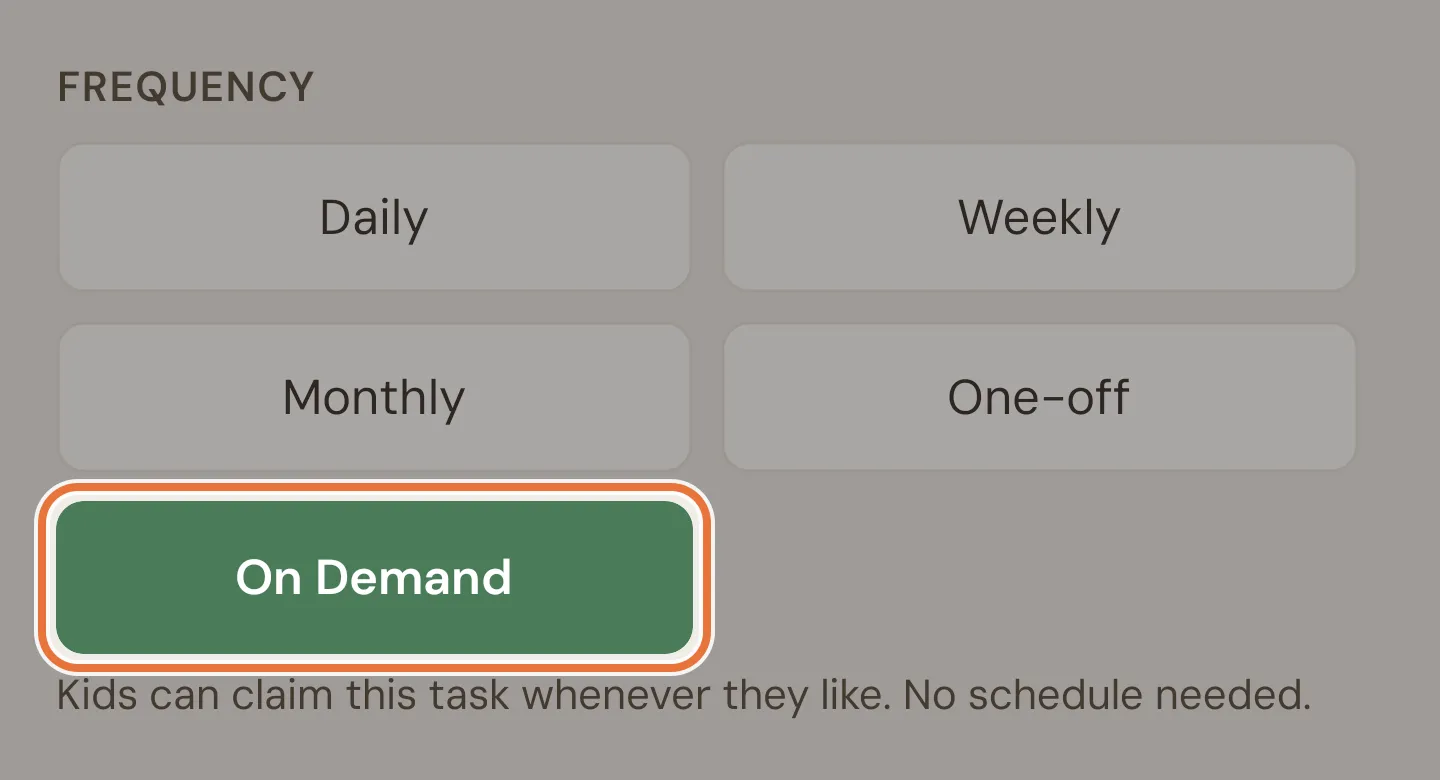
Create a paid job as above, but under Frequency choose On Demand.
-
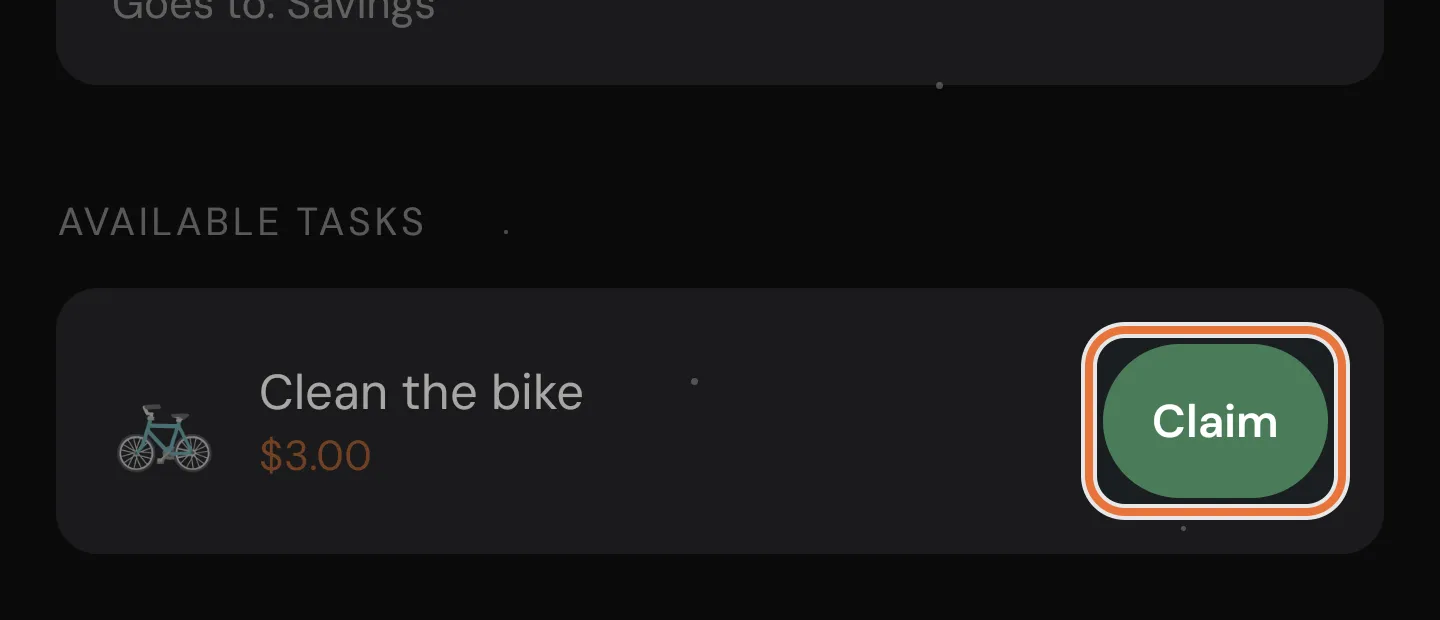
On their Quiddo page, your kid opens Tasks and finds the job under Available Tasks. Once they’ve done it, they tap Claim. That counts as done, so it goes straight to Waiting for your approval (or pays straight away if approval is off). A job with steps shows Start instead, which opens its checklist.
-
From there you approve it like any other job.
How anytime jobs behave
Anytime jobs are open to every kid, so you can’t assign them to one. Once a kid claims one, it’s theirs for the day: their brothers and sisters can’t claim it again until tomorrow. First in, best dressed. They can’t be responsibilities, because nobody’s required to do them.
Known issue: Claimed anytime jobs skip the bucket choice
When a kid claims an anytime job, they don’t get to choose which bucket the reward goes into. It uses their usual reward bucket (see the next section). If the job has steps with timers, the timers are switched off for claimed jobs.
4. Choose where the money goes
Section titled “4. Choose where the money goes”By default, rewards go into your kid’s default spending bucket. You can point them somewhere else, and kids with more than one bucket can choose each time.
-
Open your kid’s page and tap the pencil to edit them.
-
Under Money routing, find Task rewards and tap the bucket you want, or Auto to use their default spending bucket. It saves straight away.
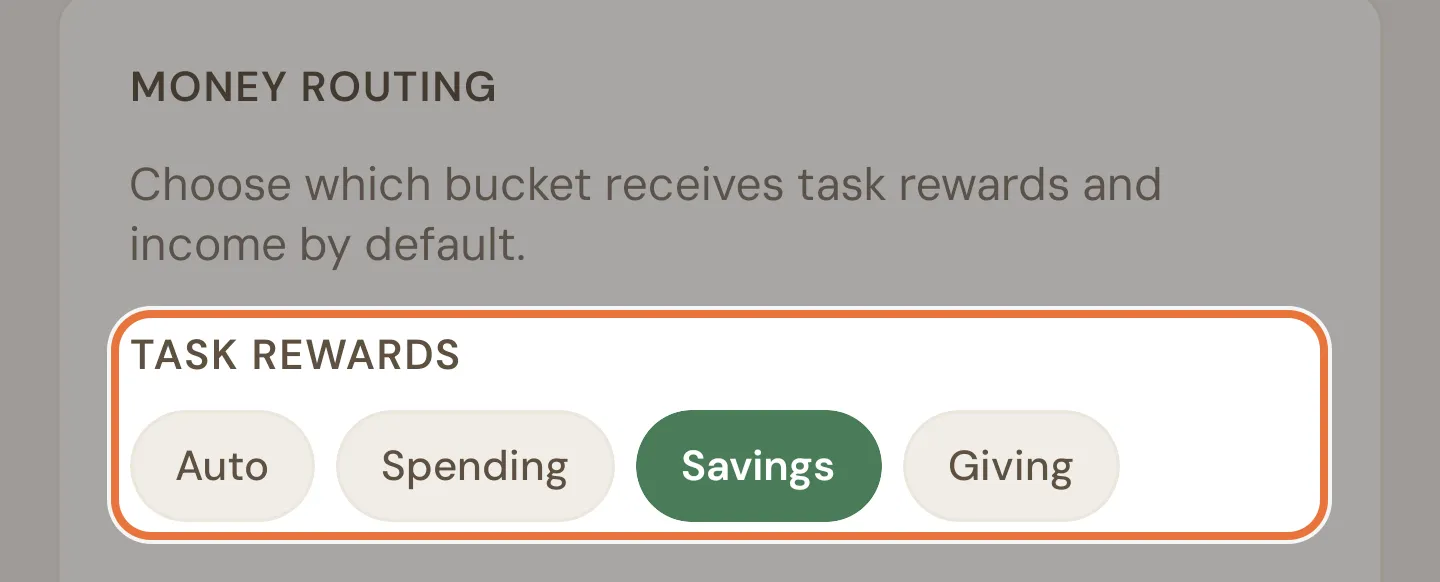
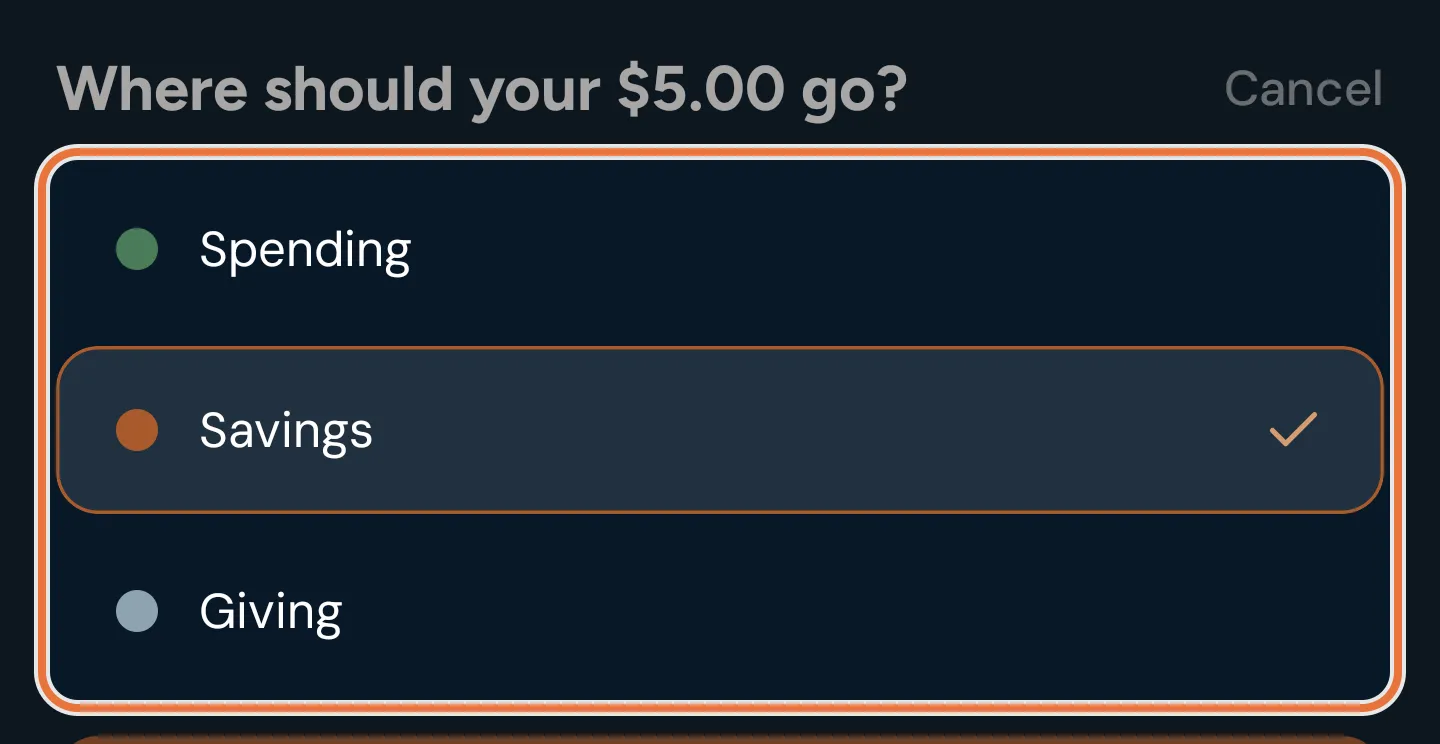
If your kid has more than one bucket, they get the final say. When they tap I did it! on a paid job, Quiddo asks where the money should go, with your choice already selected.
Which bucket wins
Your kid’s choice when they submit comes first. If they didn’t choose (a single bucket, an anytime job, or you ticked it off for them), it goes to the Task rewards bucket. If that’s set to Auto, it goes to their default spending bucket.
Rewards can feed a savings goal
If the reward lands in a bucket with a savings goal set to Auto-fund, some or all of it goes straight toward that goal. See Saving for the big thing.
5. Your kid does the job
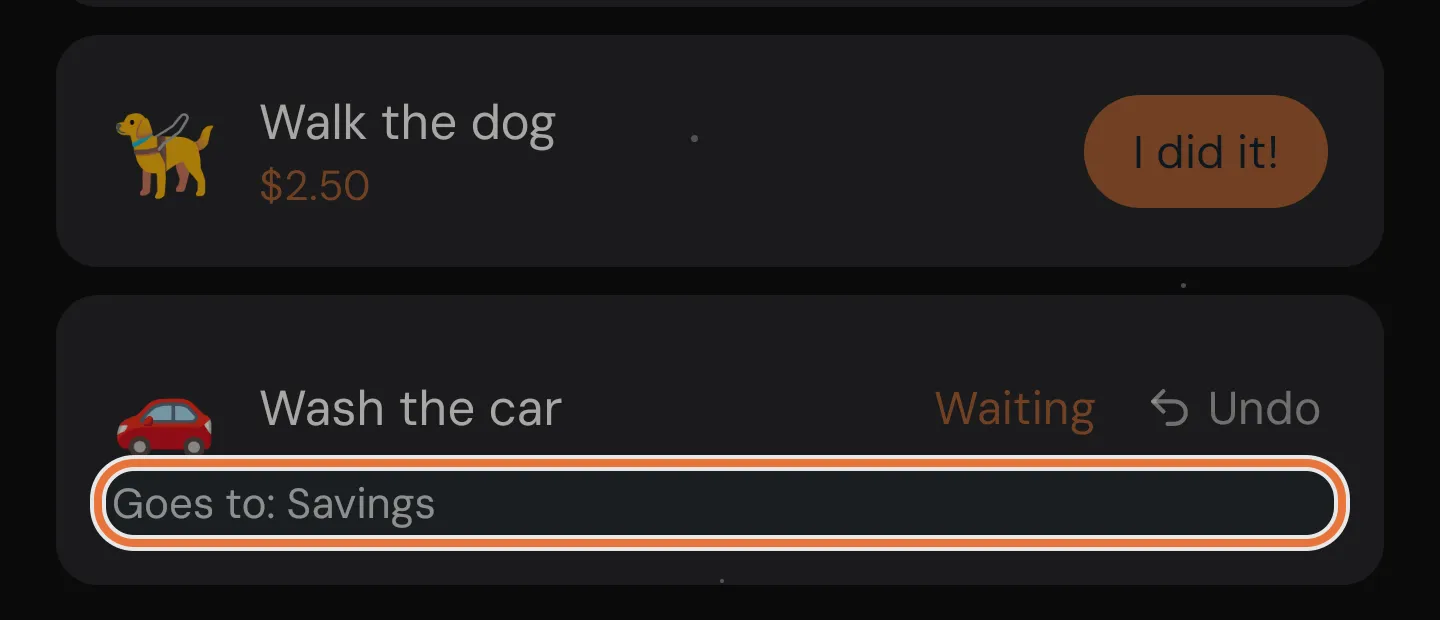
Section titled “5. Your kid does the job”On their Quiddo page, paid jobs show the reward next to the name. When they’ve done it, they tap I did it!, choose a bucket if asked, and the job shows Waiting until you approve.
6. Approve and pay
Section titled “6. Approve and pay”Waiting jobs show up in the yellow bar at the top of the Money tab and under Awaiting approval on the Daily screen. Each card shows how much it pays and which bucket it’s going to.
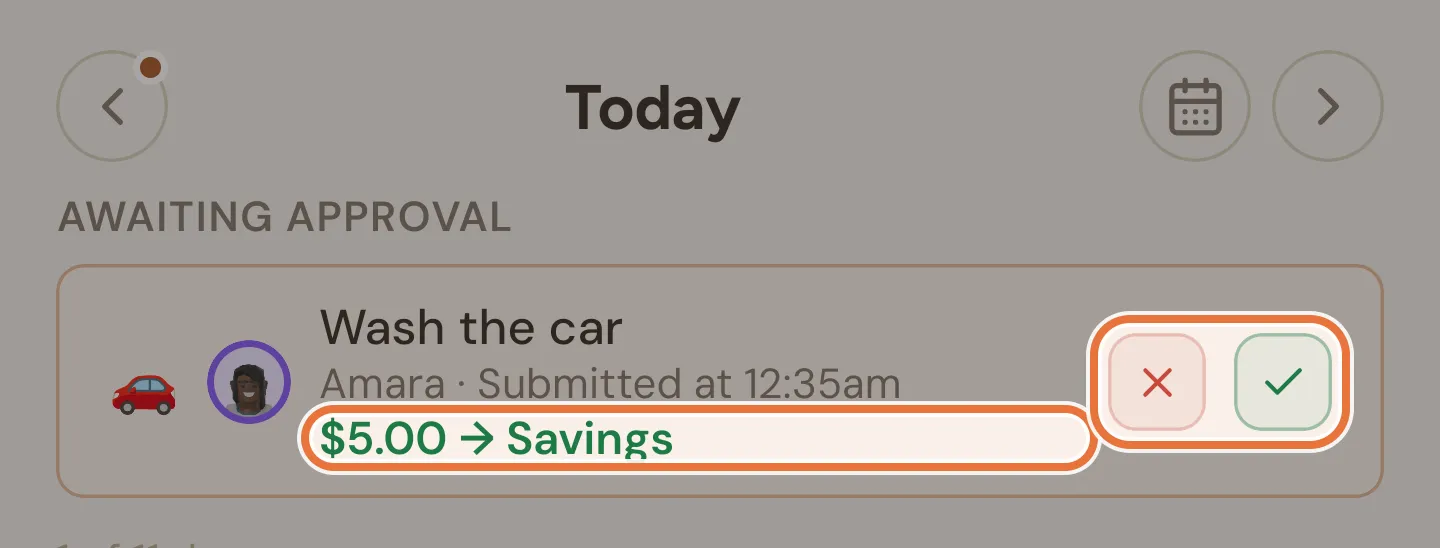
- Tap ✓ to approve. The money moves straight away.
- Tap × to send it back. Your kid sees “Your parent sent this back” and can have another go.
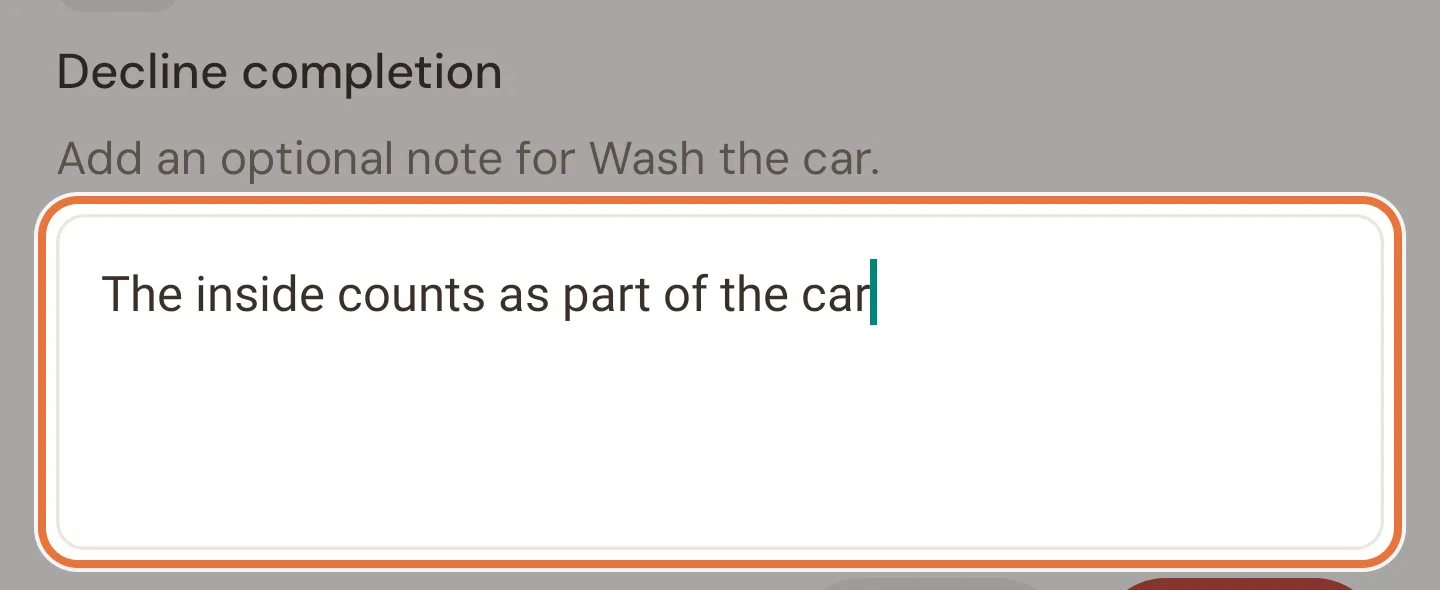
- Want a record of why? Decline it from Family › Task completions instead, which lets you add a note (“the inside counts as part of the car”). The note is saved in the job’s history. Your kid gets a notification but can’t see the note in the app yet, so tell them in person too.
Did your kid do the job without telling the app? Tap ✓ on today’s unticked job on the Daily screen to mark it done and pay them in one go. For an earlier day, approve it from Family › Task completions instead.
Undoing an approval takes the money back
If you approved by mistake, tap Undo on the job. Quiddo takes the reward back out of the bucket. If some of it had already gone toward a savings goal, the goal’s funding drops so it never holds more than the bucket has.
Changing the price
A job pays whatever it’s worth when you approve it. Raising the price today also raises it for any submissions still waiting. Jobs you’ve already approved keep what they were paid.
7. See what they’ve earned
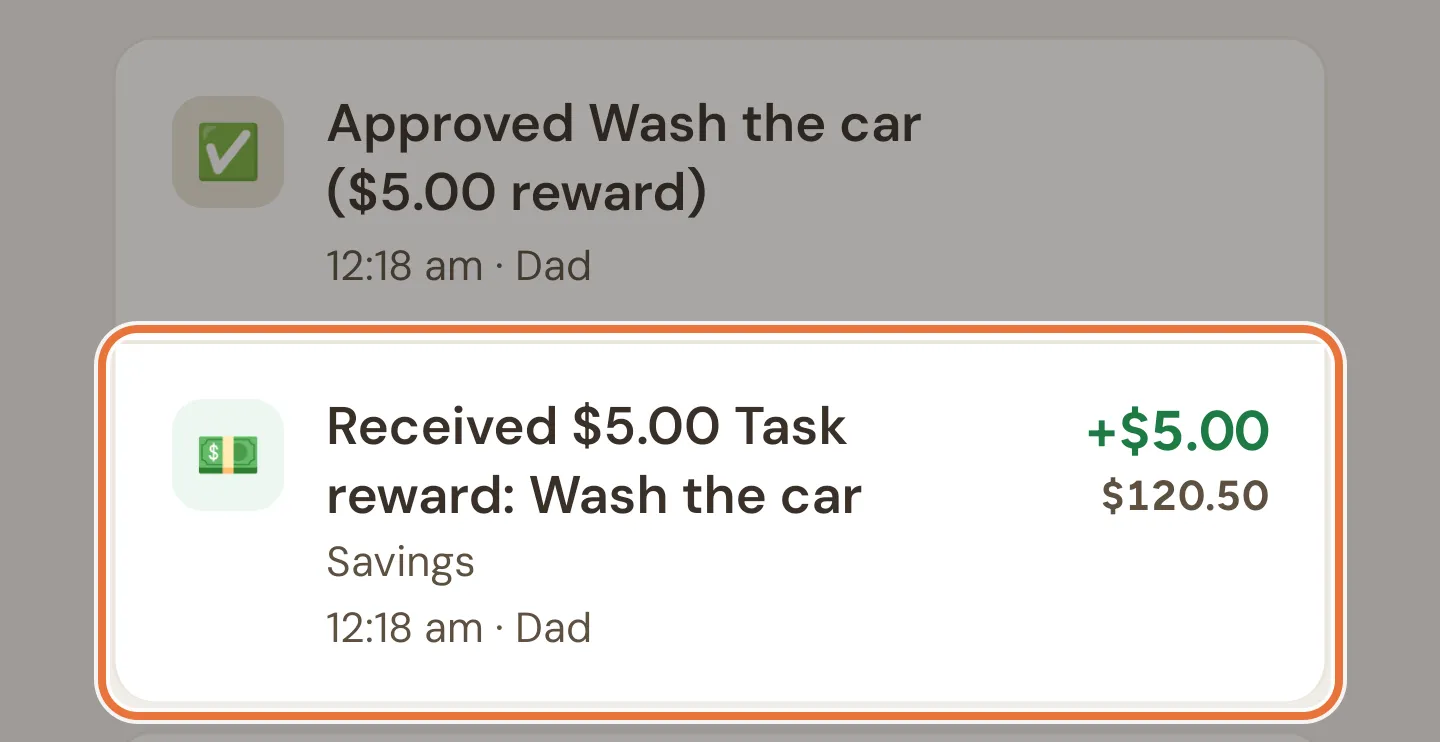
Section titled “7. See what they’ve earned”Every reward shows up in your kid’s History as “Task reward” with the bucket it went to and the new balance.
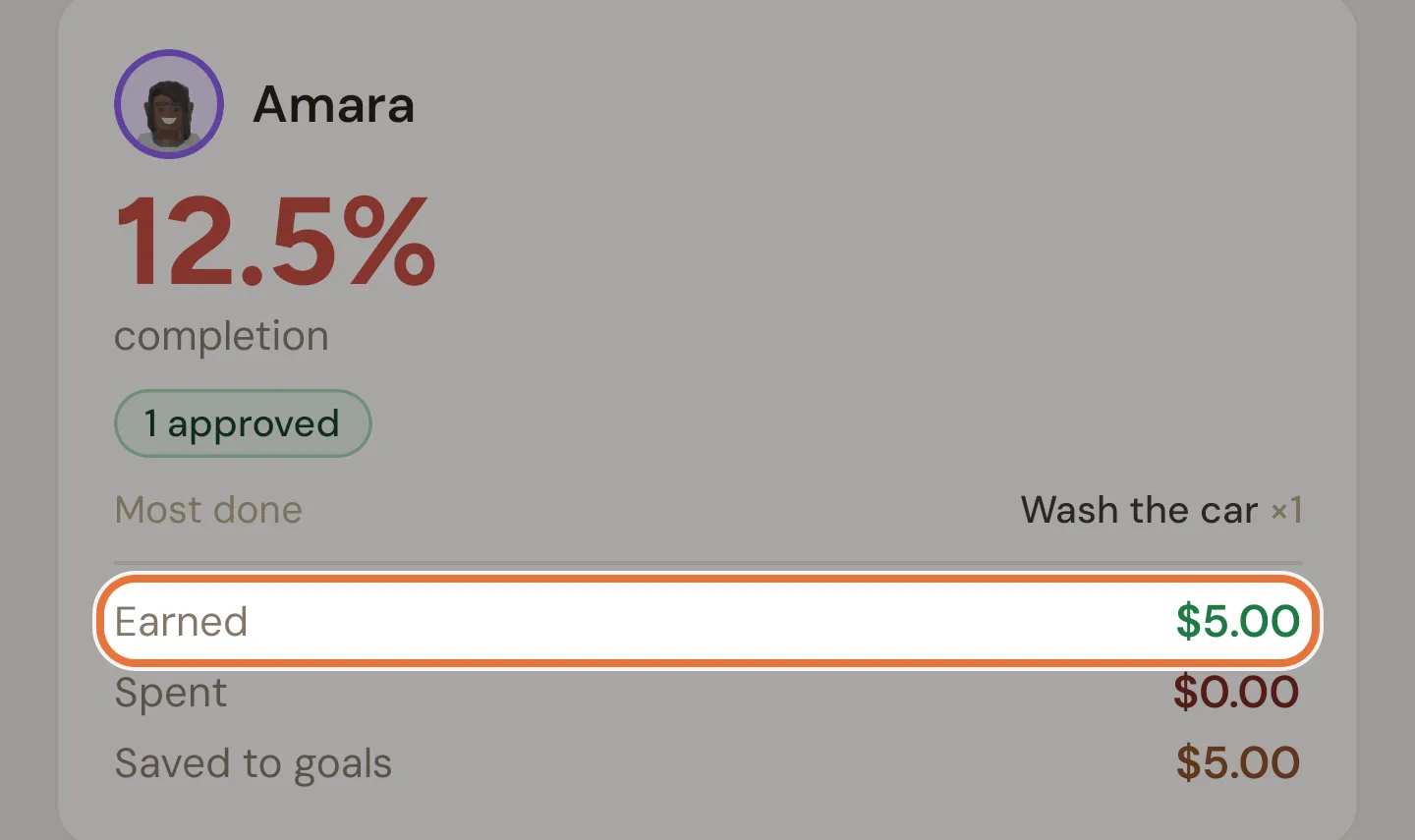
For a weekly view, open Family › Stats. Each kid’s card shows what they earned, spent and saved to goals that week, plus the jobs they did most and missed most.
A typical Saturday
Section titled “A typical Saturday”| When | Kid | You |
|---|---|---|
| 9:00 am | Spots Wash the car in their jobs for today | |
| 10:30 am | Taps I did it!, sends the $5 to Savings | Gets a notification |
| 10:35 am | Inspects the car, finds the inside untouched, sends it back and explains through the window | |
| 11:00 am | Does the inside, taps This time I really did it! | Approves |
| 11:01 am | $5.00 lands in Savings |
Where to go next
Section titled “Where to go next”- Pair paid jobs with weekly pocket money and a few non-negotiables: Weekly pocket money, with jobs that have to get done.
- Split what they earn into Save, Spend and Give: Save, Spend, Give buckets.
- Give the savings something to aim at: Saving for the big thing.