
Money tab
The Money tab is the first thing you see when you open Quiddo. It shows each kid’s money at a glance, flags anything that needs you, and has shortcuts for the two things you’ll do most: recording a spend and adding money.
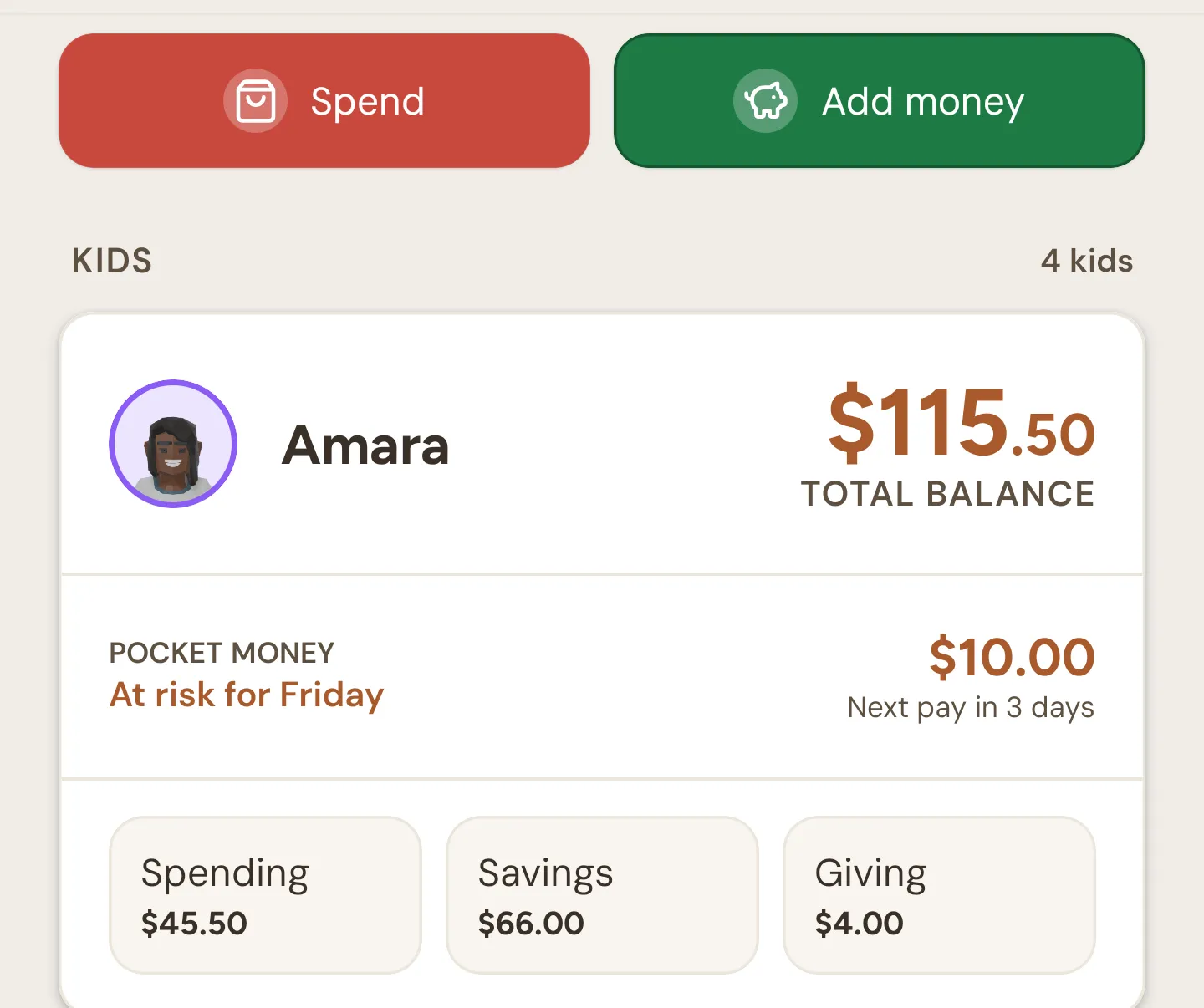
Quick actions
Section titled “Quick actions”The two buttons at the top:
| Button | What it does |
|---|---|
| Spend | Record something one or more kids spent. You pick the kids in the sheet. |
| Add money | Record money a kid received, like birthday money, and choose where it goes. |
Both open a sheet with no kid chosen yet. To add or spend for one particular kid, it’s quicker from their page, where the kid (and the bucket) are already picked. Both sheets are covered in Adding money and recording spends.
Approvals bar
Section titled “Approvals bar”When a kid has submitted a job, a green bar appears at the top: “1 task needs your approval” or “3 tasks need your approval”. If kids have started jobs but not finished, it says how many are in progress instead.
Tap it to open the Daily screen, where you can approve or send jobs back.
Kid cards
Section titled “Kid cards”Each kid gets a card, in the order set on the Family tab. The number next to Kids is how many you have.
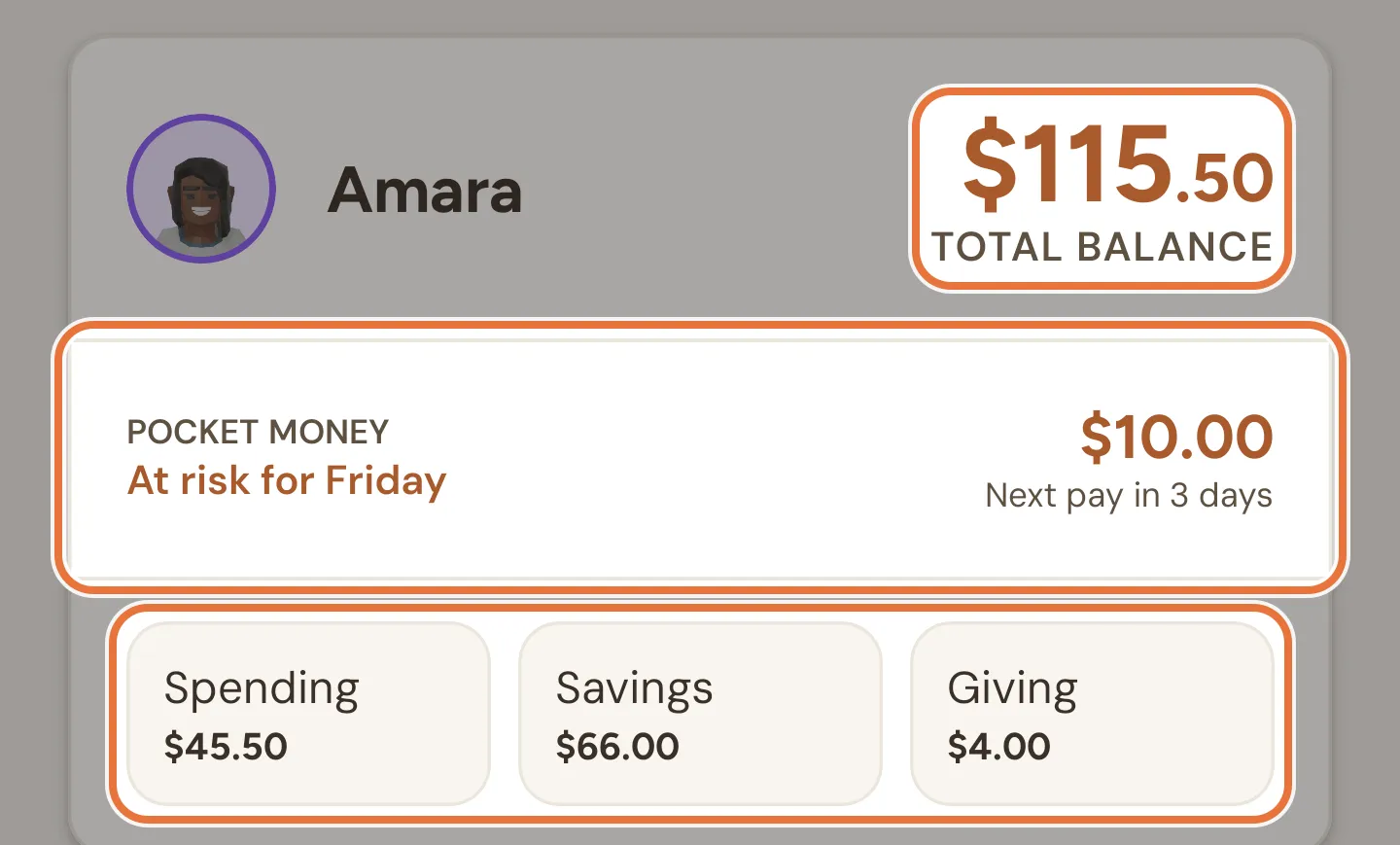
A card shows:
- Total balance: everything the kid has, across all their buckets.
- Pocket money: the status for this week, the amount, and when it’s next paid (see below).
- Bucket tiles: up to three buckets with their balances.
- Goal completed: a badge that appears when one of their savings goals has been reached and is waiting for you to buy it.
What happens when you tap:
| Tap | Opens |
|---|---|
| The kid’s name or balance | Their page, on the Money tab |
| The pocket money row | Their page, on the Tasks tab, where you can see which jobs are holding things up |
| A bucket tile | That bucket’s page |
| Other | Their page, for buckets that didn’t fit on the card |
Pull down on the screen to refresh everything.
Pocket money status
Section titled “Pocket money status”For kids with a pocket money schedule, the pocket money row tells you where this week stands. The same wording appears on their page.
| Status | Meaning |
|---|---|
| On track for Friday | Every responsibility from earlier days this week is ticked off. Today’s jobs don’t count until the day is over. |
| At risk for Friday | A responsibility from an earlier day has been missed. |
| Ready today | It’s pay day and everything’s done. The money goes out at the release time. |
| At risk today | It’s pay day and something’s still outstanding. Pay day is the one day when today’s jobs count from the morning. |
| Pending | Pay day passed with jobs outstanding. Quiddo is waiting for you to decide. |
| Withheld | You decided not to pay this one. |
The day in the status changes to match the schedule (“for Monday”, “tomorrow”, or a date for monthly pocket money). Under the amount you’ll see when the next payment is due, like “Next pay in 5 days”, and for two days after a payment, when the last one went out.
Pending and withheld pocket money
Section titled “Pending and withheld pocket money”When a payment is pending, a red banner appears on the kid’s card: “Pocket Money pending: $10.00”.
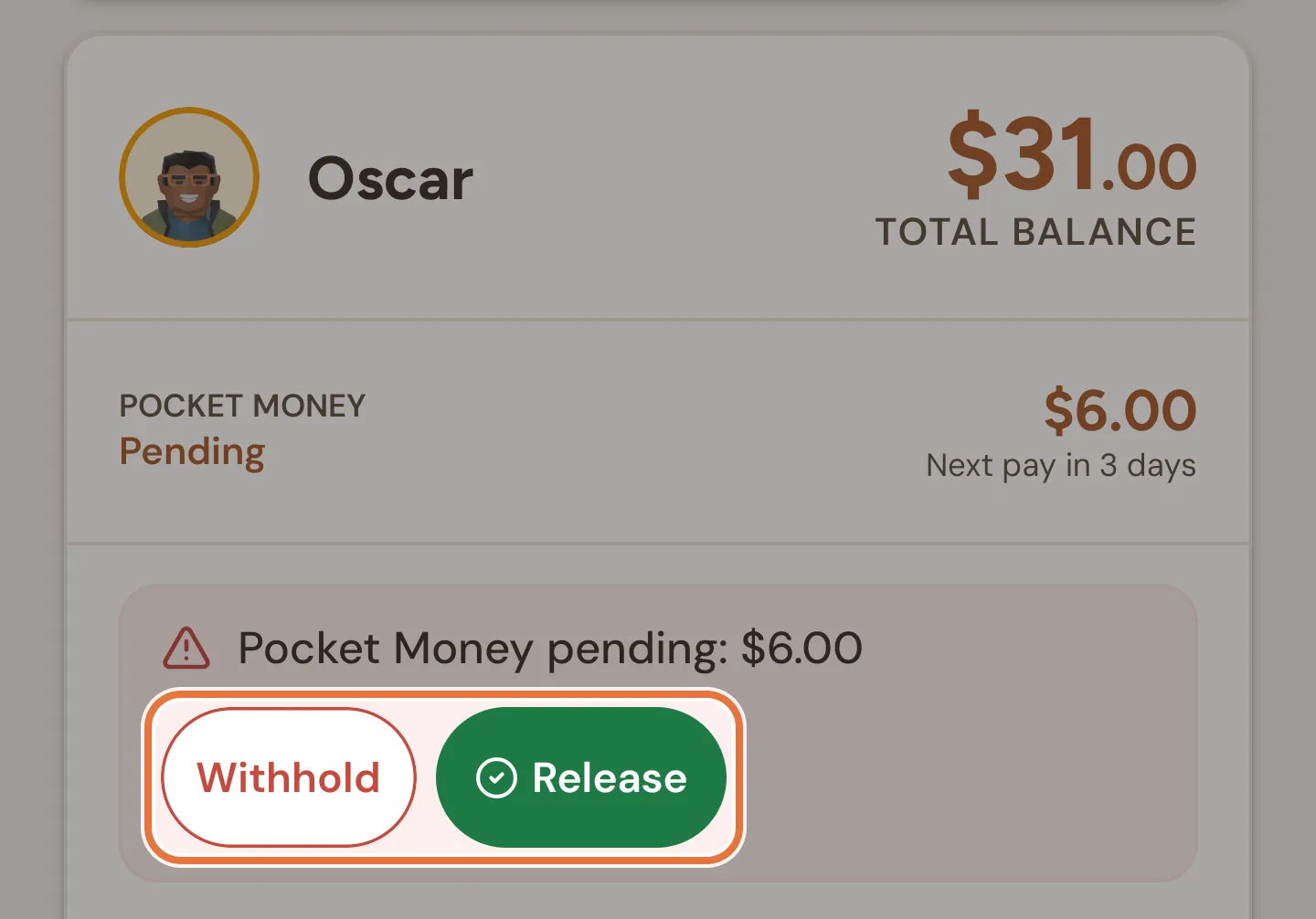
- Release pays the full amount now.
- Withhold confirms you’re not paying it. The banner turns grey and reads “Pocket Money withheld”, with an Undo button that puts it back to pending.
You can release a withheld payment later from History, or manage every past payment from Pocket money runs.
Invitations
Section titled “Invitations”If another parent has invited you to their family, a banner at the bottom says who and which family. Tap Accept to join, or ✕ to decline. See Two households, one set of kids.
Face ID and fingerprint
Section titled “Face ID and fingerprint”The first time you open the app, Quiddo offers to lock the parent side with Face ID or your fingerprint (whatever your phone supports). Tap Enable or Not now. You can change it later in Profile and settings.
No kids yet
Section titled “No kids yet”A brand new family shows “Time to add your first kid.” with two options:
- Set up with wizard walks you through kids, pocket money and jobs in one go.
- Add a kid adds one kid on their own.