
Editing a kid
This is where a kid is set up: who they are, which buckets they have, where money lands, and how they sign in. Open it with the pencil at the top of their page, or Edit on their tile on the Family tab. The screen is titled “Edit Mia” (with the kid’s name).
Adding a kid
Section titled “Adding a kid”The Add Kid screen opens from Add kid at the top of the Kids card on the Family tab, which is always there. It also opens from Add a kid on the Money tab while your family has no kids yet. It has:
- Avatar and colour, the same as when editing (see Profile). The name and avatar preview update as you type.
- Name.
- Custom Currency. Leave it on No - uses family default (it shows the family’s current currency), or tap to switch to Yes - this kid uses a custom currency. Then pick an emoji and set the Singular and Plural names. Picking an emoji suggests a name for you, and typing the singular fills in the plural. A preview line shows how amounts will read, like “⭐1 Star · ⭐25 Stars”.
Tap Add Kid to finish. Every new kid starts with two buckets, Spending and Savings, with Spending as their default spending bucket.
For a kid on stars while everyone else is on dollars, see Little kids: stars, not dollars.
Profile
Section titled “Profile”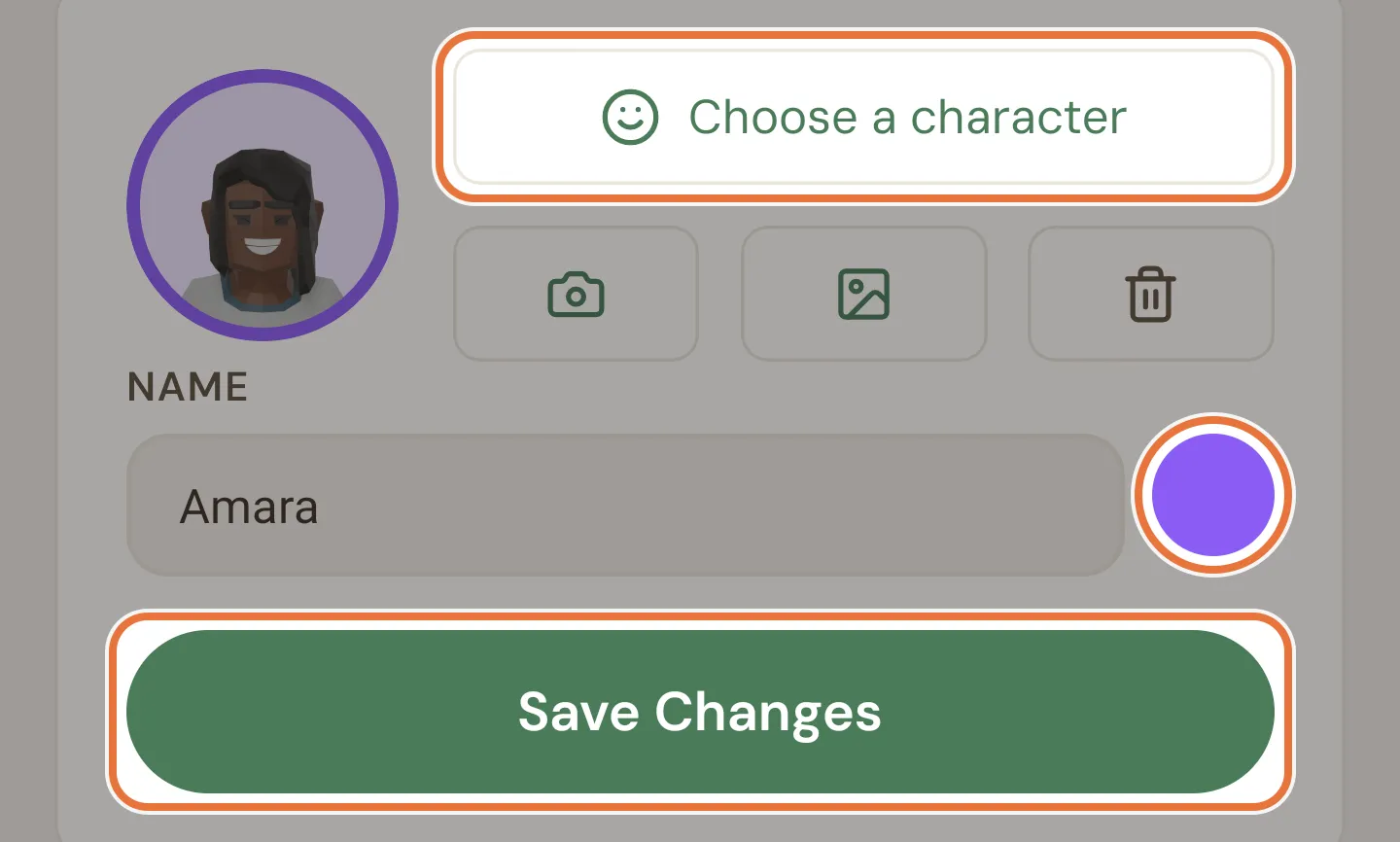
| Control | What it does |
|---|---|
| Choose a character | Opens a grid of illustrated characters to use as their avatar. |
| Camera button | Takes a photo. You can crop it to a square. |
| Picture button | Picks a photo from your phone, cropped to a square. |
| Bin button | Removes the avatar, so their initial shows instead. Appears once there’s an avatar. |
| Name | The kid’s name, shown everywhere in the app. |
| Colour dot | Opens Colour with 24 colours to choose from. It’s used for their avatar and to tint the balance on their Quiddo page. |
| Save Changes | Saves the name, colour and avatar and takes you back. |
Buckets
Section titled “Buckets”Lists every bucket with its balance.
- The pencil next to a bucket opens Edit Bucket, where you rename or delete it. See A bucket’s page.
- A bin appears next to a bucket once its balance is exactly zero, as long as the kid has another bucket. Tap it and confirm to delete the bucket.
- New bucket opens a small form: type a name and, if there’s already money set aside for it, an Opening balance (optional). Tap + Add (or ✕ to cancel). An opening balance shows up in the bucket’s history as “Opening balance”.
For choosing buckets and splitting money across them, see Save, spend, give.
Pocket money
Section titled “Pocket money”A card summarising the kid’s pocket money schedule: the amount per week or month, the pay day (“Every Fri” or “Day 1 of each month”) and the next payment date. With no schedule it reads “No pocket money set up. Tap to configure.”
Tap it to set up or change the schedule, its split and its release time. See Pocket money setup and runs.
Default spending bucket
Section titled “Default spending bucket”The bucket Quiddo uses when you record a spend without choosing one. Tap the dropdown to pick a different bucket; the ⓘ next to the heading explains what it’s for.
It’s used:
- When you record a spend for this kid: it’s the bucket already picked.
- When you split one spend across several kids with Auto split: each kid’s default spending bucket is used.
- As the fallback for task rewards and added money when Money routing is on Auto.
Money routing
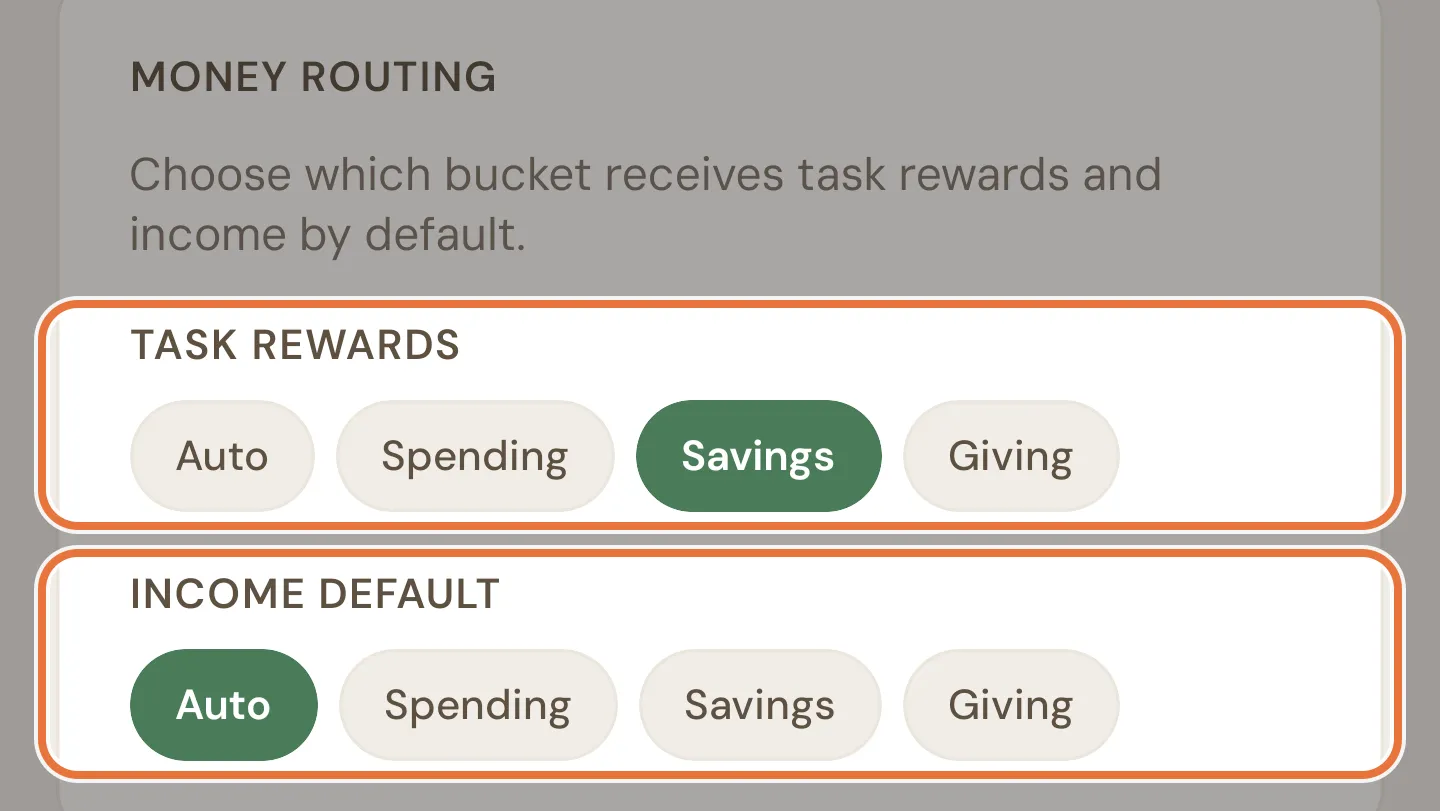
Section titled “Money routing”Choose which bucket money lands in when nobody picks one. Each row has Auto plus a button for every bucket, and changes save straight away.
| Setting | Controls | Auto means |
|---|---|---|
| Task rewards | Money from paid jobs, when they’re approved | The default spending bucket |
| Income default | Money you add without choosing buckets, like birthday money | The default spending bucket |
Device linking
Section titled “Device linking”Lets your kid sign in on their own phone or tablet with a code, no password needed. The device then opens straight to their Quiddo page.
- Tap Generate Code. A QR code and a six-character code appear, with a countdown (“Expires in 9:58”).
- On your kid’s device, open Quiddo and enter or scan the code from the sign-in screen. See Signing in and codes.
Codes last 10 minutes and work once. The copy button copies the code. Generate new code makes a fresh one and stops the old one working. Cancel hides the code on your screen, but it still works until it runs out.
Below the button is the list of linked devices, each with its name and when it was last active. Tap ✕ on a device and choose Revoke to sign it out; it will need a new code to get back in. With nothing linked, it says “No devices linked yet.”
You need to verify your email before you can generate a code. Until you do, the card says “Verify your email first to link a device.”
Child login
Section titled “Child login”For an older kid with their own email address, you can invite them to make a Quiddo account that signs in as this kid.
- Type their email and tap Send invite. The invitation shows under Pending invitations with the date it expires (seven days later). Tap ✕ and Cancel invite to withdraw it.
- Once they’ve accepted, their name and email appear in the list. Tap ✕ and Unlink to stop them signing in as this kid.
Known issue: Kid login opens a blank page
Signing in with a kid’s own login currently opens a blank page on mobile. Until that’s fixed, use a linked device (no password needed) or hand them your phone.
Known issue: Invite needs a verified email
Sending an invite needs a verified email address on your account, but the app doesn’t say so. If you see “Could not send invitation”, verify your email first. See Signing in and codes.
What you can’t change here
Section titled “What you can’t change here”Known issue: Kid currency can’t be changed later
A kid’s own currency can only be chosen when you add them. There’s no way to change it afterwards on this screen.
Known issue: Can’t archive or delete kids on mobile
You can’t archive or delete a kid from the mobile app yet.