
Profile and settings
These are your settings as a person, not your family’s. They apply in every family you’re in. Get to them from the profile menu: tap your avatar in the top-right corner, then Profile settings. The screen itself is titled User Settings.
The top bar
Section titled “The top bar”Across the top of the parent side of the app:
| Item | What it does |
|---|---|
| Quiddo logo | Takes you back to the Money tab. |
| Unverified | Only shows if you haven’t confirmed your email address. Tap it to verify. |
| ☰ (menu) | Opens the navigation menu. A dot on it means an app update is waiting. |
| Your avatar | Opens the profile menu. |
If your family’s subscription has run out, a bar underneath says “Your trial has expired. Subscribe to continue making changes.” Tap it to go to Billing.
Navigation menu
Section titled “Navigation menu”The ☰ menu has three items:
- Rate Us! opens the app store, or Update Available when there’s a newer version.
- History opens History.
- Send Feedback (see below).
Profile menu
Section titled “Profile menu”Tapping your avatar slides in a panel from the right.
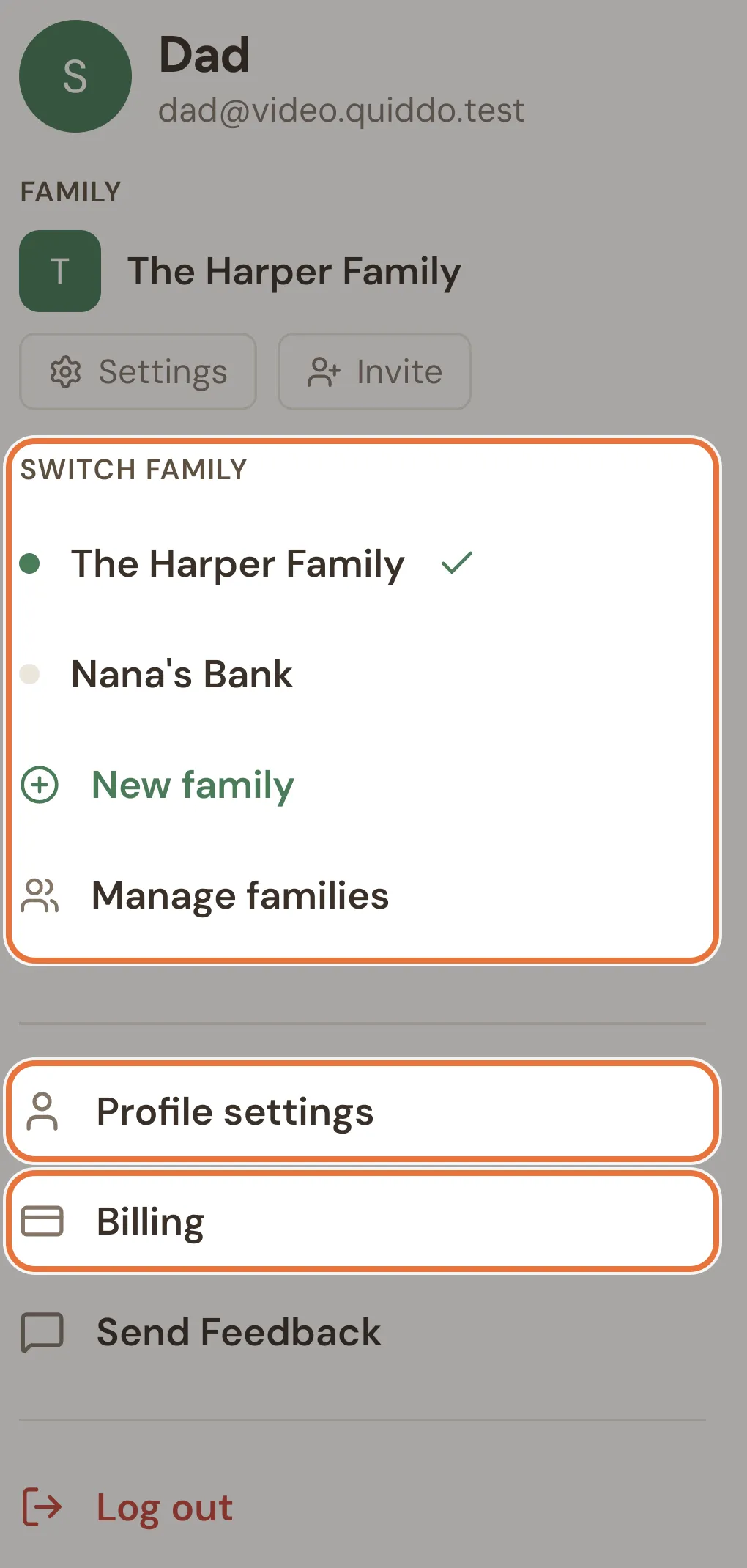
From the top:
- Your photo, the name kids call you (or your name), and your email.
- Family: the active family, with Settings (opens the Family tab) and, for the admin, Invite (also the Family tab, where the invite section is).
- Switch family (or Families): your families, New family and Manage families. See Families and switching.
- Profile settings, Billing, Send Feedback and Log out.
Profile
Section titled “Profile”The Profile card shows your photo (or first initial), what kids call you, your name and your email. Tap Edit Profile to change:
| Field | Notes |
|---|---|
| Photo (optional) | Camera or Gallery. The ✕ on the photo removes it. |
| Name | Your name. |
| What kids call you | For example Mum, Dad or Nana. It’s shown in place of your name on this card and in the profile menu. |
| Changing it asks for your Current password. |
Tap Save, or Cancel to leave it as it was.
Account
Section titled “Account”Billing & Subscription opens Billing.
Biometric login
Section titled “Biometric login”If your phone has Face ID, a fingerprint reader or similar, Security has a Biometric Login switch. Turning it on asks you to verify first. Once it’s on, Quiddo locks after 5 minutes in the background and asks for your face or fingerprint when you come back.
The Money tab offers to turn this on the first time you open the app. See Money tab.
Password
Section titled “Password”Tap Change Password, then enter your Current Password, a New Password and Confirm New Password, and tap Update Password.
Forgotten it? Sign out and use Forgot password? on the sign-in screen.
Two-factor authentication
Section titled “Two-factor authentication”Two-factor authentication (2FA) asks for a six-digit code from an authenticator app when you sign in, as well as your password.
- Under Two-Factor Authentication, tap Enable 2FA.
- Scan the QR code with your authenticator app, or type the key shown under it.
- Enter the six-digit code and tap Confirm & Enable.
- Quiddo shows your recovery codes. Store them somewhere safe; each one works once, for when you don’t have your phone.
Once it’s on, the section says Two-Factor Authentication Enabled and has:
- View Recovery Codes and Regenerate Codes. Both ask for your password. Regenerating replaces the old codes.
- Disable 2FA, which also asks for your password.
What signing in with 2FA looks like is on Signing in and codes.
Notifications
Section titled “Notifications”Four switches control which push notifications you get:
| Switch | When |
|---|---|
| Tasks | A kid submits a job for approval. |
| Pocket money | Pocket money is released, pending or withheld. |
| Savings goals | A kid reaches a savings goal. |
| Family updates | A new parent joins, or a kid’s account is linked. |
Changes save as soon as you flip a switch. Each parent picks their own.
Connected accounts
Section titled “Connected accounts”If you’ve signed in with Google, Apple or Facebook, Connected Accounts lists each one with its name or email and Connected.
Export your data
Section titled “Export your data”Under Data & Privacy, Export My Data gathers your account data (as JSON) and opens your phone’s share sheet, so you can save it or send it somewhere.
Send feedback
Section titled “Send feedback”Send Feedback is on this screen, in the profile menu and in the navigation menu. Pick a Type (Bug Report, Feature Request or General Feedback), add a Title and Description, and attach up to five screenshots from the Camera or Gallery. Your app version and phone type go with it. Title and description are required.
Deleting your account
Section titled “Deleting your account”Delete Account is permanent. The confirmation warns that all your families, kids, accounts, tasks and goals will be deleted. To confirm, type delete my account and tap Delete My Account.
You can’t delete your account while you have an active subscription. The button is greyed out with “You have an active subscription. Cancel it in Billing first.”
Signing out
Section titled “Signing out”Sign Out asks “Are you sure you want to sign out?” first. Log out in the profile menu signs out straight away.
The app version is shown at the bottom of the screen, handy when reporting a bug.