
Your kid's Quiddo page
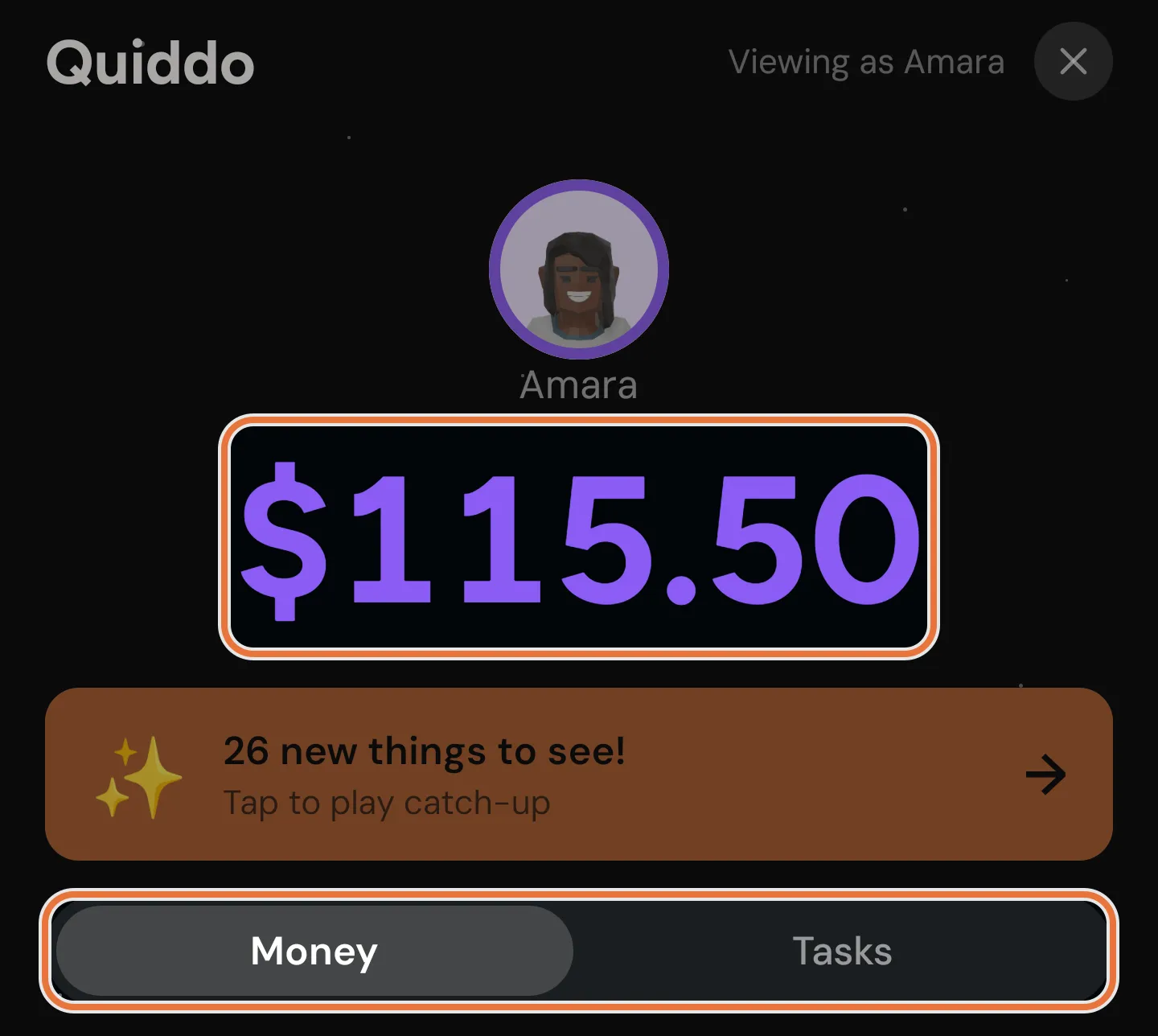
Your kid’s Quiddo page is the kid side of the app: a dark, starry screen with their balance, their buckets and goals, and today’s jobs. This page is written for you, so you know what they’re looking at and what they can change.
Three ways in
Section titled “Three ways in”| Way in | How it starts | Header shows |
|---|---|---|
| Their own phone or tablet | You generate a code under Device linking on their edit screen. On their device they tap Have a code? Enter it here, then Link as their name. No password. | Log out |
| Their own login (a Linked User) | You send an invite under Child login on their edit screen. They accept it with that email address, then sign in to the app with their email and password. | Viewing as their name, and ✕ |
| Your phone (“view as”) | On their page, tap the starry Quiddo page button (for example Mia’s Quiddo page). | Viewing as their name, and ✕ |
Anything done on the page counts as your kid doing it, whichever way in. When you view as them, you can only do what they can do: to approve a job, close the page with ✕ and go back to the parent side.
The ways in behave differently in a few places:
| Own device | Own login or view as | |
|---|---|---|
| Jobs listed | Weekly jobs only on their days | Every job assigned to them |
| Catch-up card | Not shown | Shown when there’s something new |
| Goal celebration | Pops up when a goal is reached | Not shown |
If a login is linked to more than one kid, it opens on Choose a profile first.
On a kid’s own device, Log out signs out straight away with no parent check. To use that device again, generate a new code.
Header and balance
Section titled “Header and balance”Under the header are your kid’s avatar, their name, and their total balance across all buckets, in their colour. The balance gives a little pulse when it changes.
Below that are two tabs, Money and Tasks. Tap a tab or swipe sideways to switch. Turn the device sideways and the avatar and balance move to a panel on the left, with the tabs on the right.
Pull down on either tab to refresh.
My Buckets
Section titled “My Buckets”The Money tab lists My Buckets: each bucket with its balance, and any savings goals that live in it.
When a bucket has goals, it also shows Unallocated. On this page, that means the money in the bucket that isn’t set aside for a goal: what your kid is free to spend or put toward a goal. It’s different from the unallocated money on the parent side, which is money that hasn’t been put in a bucket yet.
Goals without a bucket appear in a card called Other Goals.
Each goal is a small card with its photo (if it has one), a progress bar and, without a photo, the amounts saved and needed. A reached goal shows a Funded! badge and a shimmer on the bar.
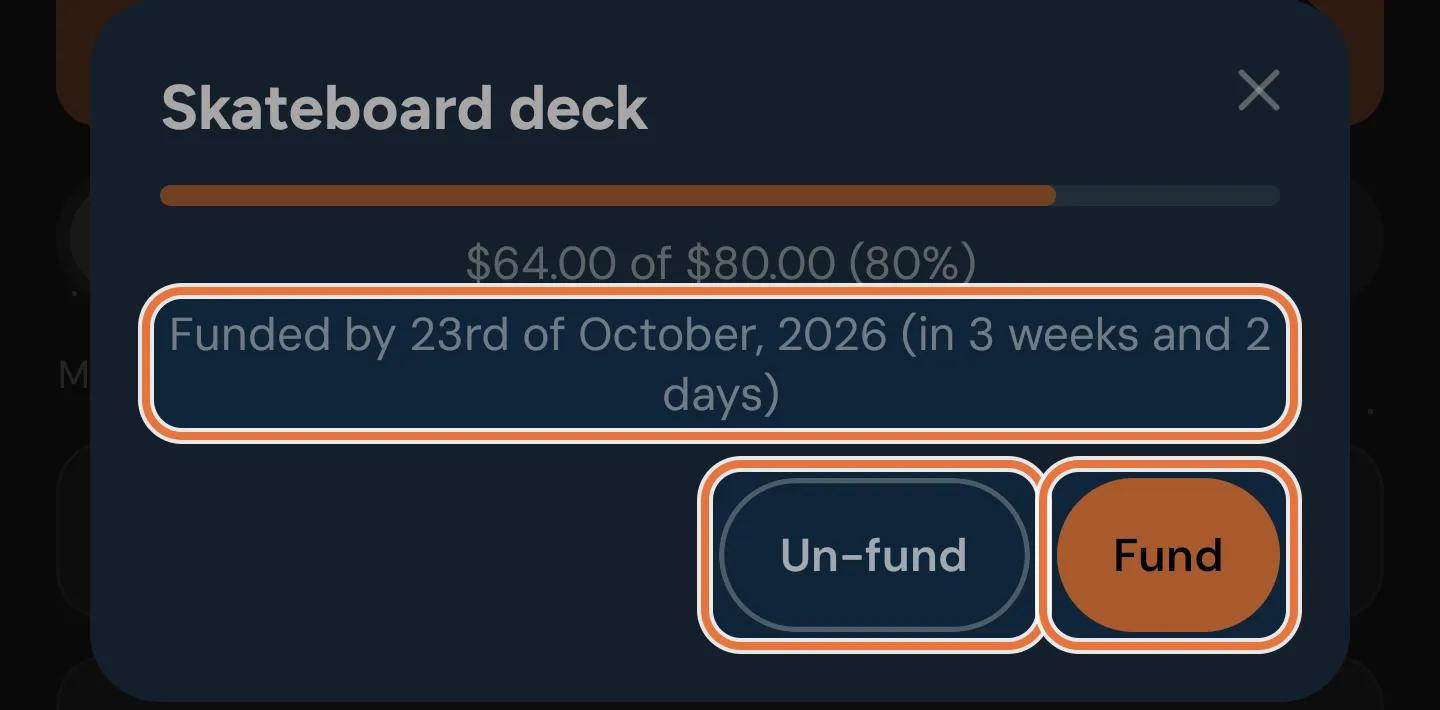
Tapping a goal zooms it open to show:
- The amount saved, the target, and the percentage.
- Funded by: an estimate like “Funded by 14th of November, 2026 (in 7 weeks)”. It only appears when your kid has a pocket money schedule, and it’s worked out from pocket money alone.
- Fund: set aside more of the bucket’s free money for this goal. It’s greyed out when there’s nothing free.
- Un-fund: take money back off the goal. It only appears once something’s been saved.
Both buttons disappear once the goal is reached. Tapping Fund opens a sheet showing how much is available in the bucket, an amount, a Max button, and a Fund button with the amount. Un-fund works the same way, showing how much is currently saved, with a Remove button.
Funding a goal doesn’t move money. It stays in the bucket, marked as saved for that goal. See Saving for the big thing.
Pocket money split
Section titled “Pocket money split”If your kid’s pocket money is split across two or more buckets, the Money tab shows My pocket money split: a bar for each bucket with its share of each payment.
- If you’ve let them choose their own split, there’s a Change button.
- If not, it says Set by parent with a padlock.
Change opens Adjust my split. Each bucket is a column your kid drags up or down, and the other buckets adjust to keep the total right. Amounts move in 10c steps. Split evenly shares it out equally.
Dragging stops at any minimum you’ve set for a bucket. If a bucket ends up under its minimum, the sheet says it has “a minimum set by your parent”. Save stays greyed out until the amounts add up to the full pocket money amount and every minimum is met. Their choice sticks for every payment until someone changes it.
Setting up the split and minimums is in Save, spend, give.
My Tasks
Section titled “My Tasks”The Tasks tab lists My Tasks. When jobs belong to a routine that runs today, they’re grouped under the routine’s name, and the routine that’s on right now is marked Now. Other jobs follow.
Each job shows its emoji and name, plus:
- The reward, for paid jobs.
- For jobs with steps, the number of steps, the rough total time, and the steps themselves.
- For timed jobs without steps, the rough time.
- Do today, when you’ve assigned an anytime job to them for today.
The button on the right depends on the job:
| Job | Button |
|---|---|
| A plain job | I did it! |
| A job with steps, or a timed job | Start |
| Steps started but not finished | Continue, with “2/5 steps done” and a progress bar |
| A timed job that’s been started | Continue, with “In progress” |
Ticking off a job
Section titled “Ticking off a job”Tapping I did it! sends the job to you. The card then shows:
- Waiting with an Undo button while it needs your approval. Undo takes it back, with no confirmation.
- Done once it’s approved. Jobs that don’t need approval go straight to Done.
For paid jobs where your kid chose a bucket, the card also says where the money goes (“Goes to: Savings”, then “Earned $2.00 → Savings” once approved).
You approve jobs from the Daily screen.
Steps and timers
Section titled “Steps and timers”Tapping Start on a job with steps opens a full-screen checklist.
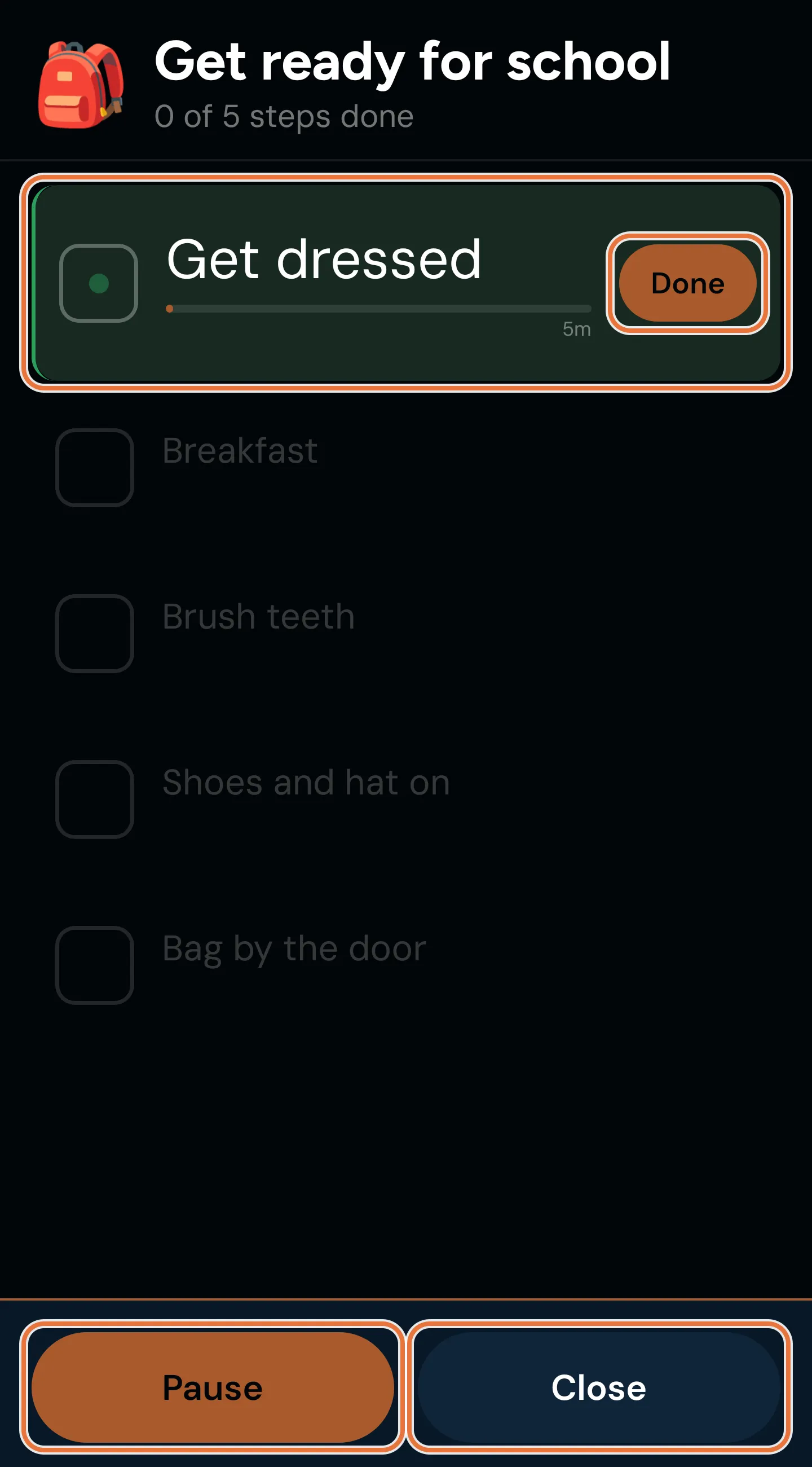
- Timed jobs first say “This task is timed” with Start timer and Skip timer. A timed job without steps shows its rough time with Start timer and I did it!.
- The current step is large and highlighted, with a Done button and, if the timer’s running, a countdown bar. Tapping any step ticks or unticks it.
- Pause and Resume stop and restart the clock. Close leaves the checklist and keeps their progress; the card then shows Continue.
- If a job doesn’t start the next step’s timer automatically, your kid sees “Ready for the next step?” with ▶ Start. The Start next timer automatically switch there changes that for this run only.
- When every step is ticked they see All done!, with Undo last step and Submit for approval. For jobs that don’t need approval the button is I did it!.
The same flow, step by step, is in A morning routine that runs itself.
Choosing a bucket for a reward
Section titled “Choosing a bucket for a reward”For a paid job, when your kid has two or more buckets, finishing it opens “Where should your $2.00 go?”. The bucket you’ve set for task rewards is picked to start with (or their default spending bucket). They can pick another and tap Done, or Cancel to go back without sending the job.
Where rewards go by default is set under money routing on their edit screen. See Paid jobs.
Available Tasks
Section titled “Available Tasks”Anytime jobs your kid hasn’t done today are listed under Available Tasks, with the reward and number of steps. The button is Claim or, for jobs with steps, Start.
- Claim sends a plain job to you straight away, like I did it!.
- Start opens the checklist.
Once claimed, the job moves into My Tasks for the rest of the day. Each kid can do an anytime job once a day. When one kid has claimed it, it also disappears from the other kids’ lists until tomorrow, unless you send it back.
Known issue: Available Tasks skip timers and bucket choice
Anytime jobs started from Available Tasks don’t run their timers, and paid anytime jobs skip the bucket choice, so the reward goes to the usual bucket.
When a job can’t be claimed
If another kid got to an anytime job first, your kid sees “Someone else is doing this one today.” and the list refreshes. If the family’s subscription has lapsed, they’re told to ask a grown-up. With no connection they see “Can’t connect right now. Check your internet and try again.” Any other failure says “That didn’t work. Please try again.”
Sent back
Section titled “Sent back”When you decline a job done today, its card says Your parent sent this back and your kid can have another go:
- A plain job’s button becomes This time I really did it!.
- A job with steps shows Try again, or Continue if they’d already started the steps.
Waiting for Approval
Section titled “Waiting for Approval”Jobs from earlier this week that are still waiting for you, or that you declined, are listed under Waiting for Approval at the bottom of the Tasks tab. Each says “Submitted yesterday” or “Submitted Mon”, or “Declined yesterday” with a Declined badge. Only the latest one for each job shows.
Catch-up
Section titled “Catch-up”When money has come in or gone out since the last catch-up, a card at the top says ”✨ 3 new things to see!” and Tap to play catch-up.
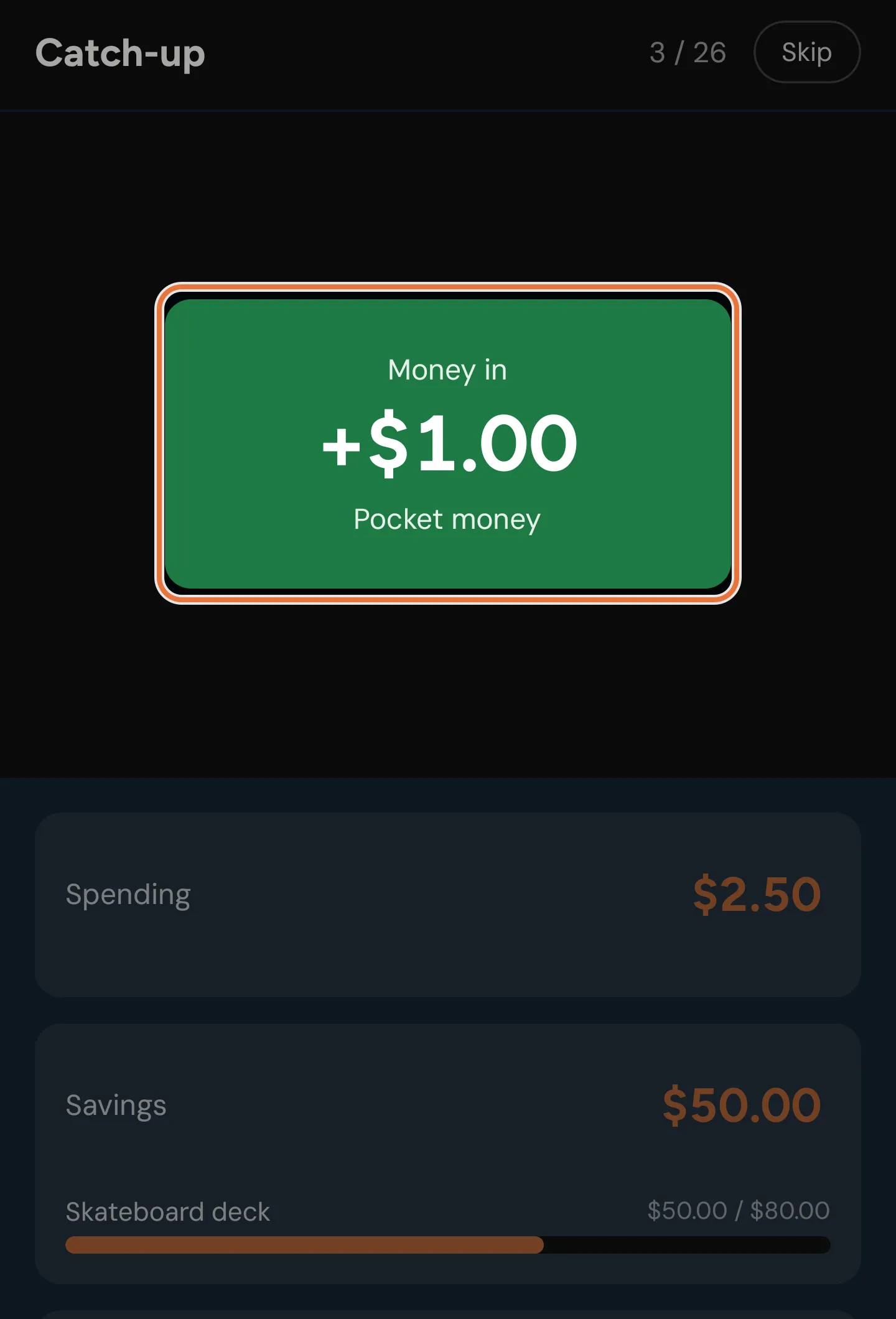
The catch-up replays each event in order, with a counter (“2 / 5”) and a Skip button:
- Money in and Money out, with the amount and description.
- Transfer, with the two buckets.
- Pocket money, showing how much went to each bucket.
Coins fly into the bucket cards below, balances tick over and goal bars fill up. A goal that’s reached along the way gets confetti. At the end it says All caught up! and how many events there were. Done marks them as seen, and the card goes away until there’s something new.
Skip jumps straight to the end. If there’s nothing new, the screen says “Nothing new to show.” with a Back button.
Goal celebration
Section titled “Goal celebration”On your kid’s own device, reaching a goal brings up a celebration: confetti, the goal’s photo, You did it!, and “$60.00 goal reached”. Tapping I got it! marks it as seen. If more than one goal was reached, they come up one after another. The notification for a reached goal opens the same celebration.
I got it! doesn’t buy anything. The money stays in the bucket until you record the purchase from Savings goals.