
Family tab
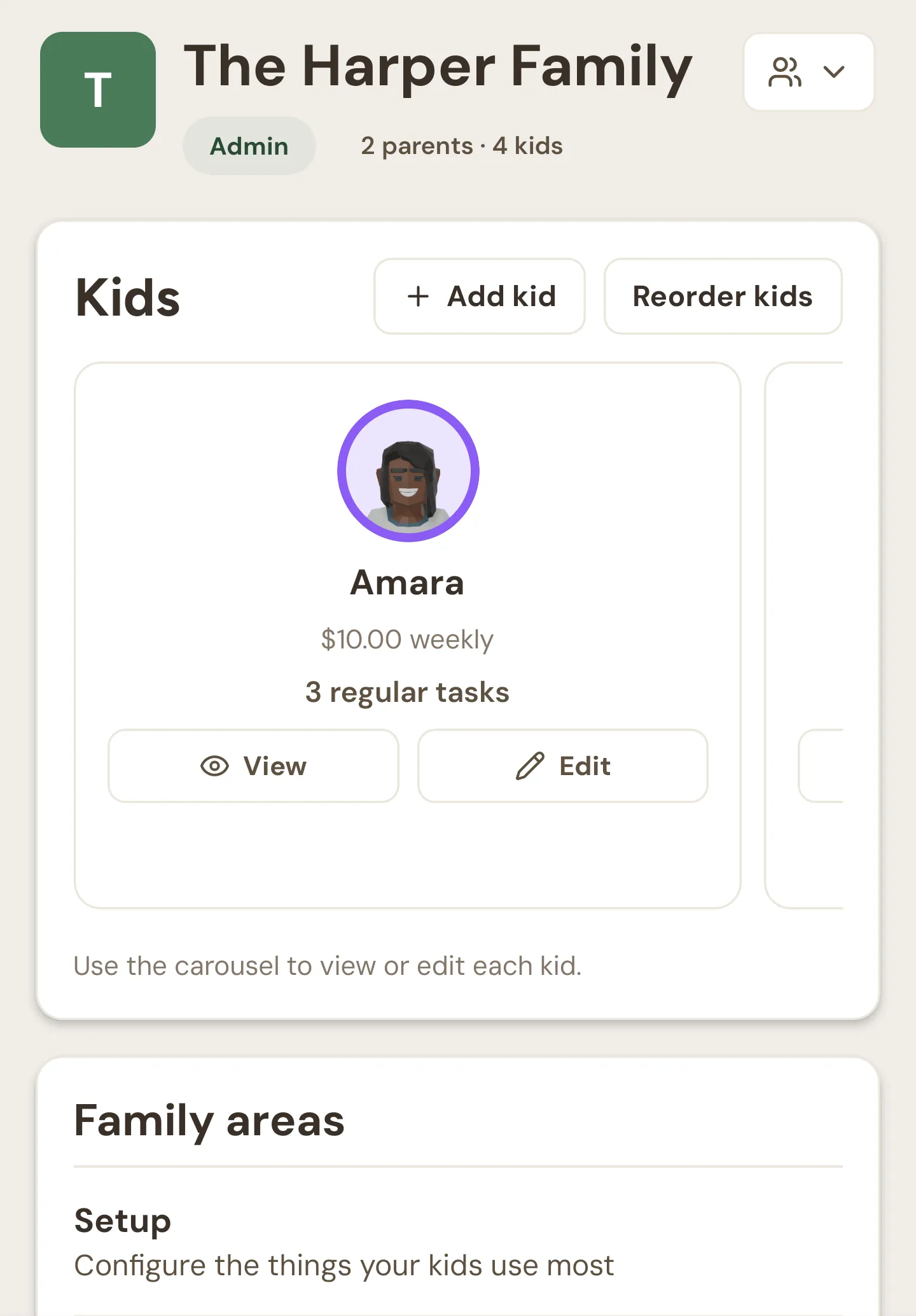
The Family tab is where the family-wide things live: your kids, the setup screens for pocket money, jobs, goals and routines, the records of what’s happened, and the family’s own settings. Tap Family in the bar at the bottom of the app.
Pull down on the screen to refresh everything.
Header and family switcher
Section titled “Header and family switcher”The top of the tab shows the family’s name and two badges:
- Your role in this family: Admin or Member.
- How many parents and kids it has, like “2 parents · 3 kids”.
The button on the right opens Switch family, a list of every family you belong to with your role in each. The one you’re in is marked Current. Tap another to switch to it. Manage families at the bottom opens the full list, covered in Families and switching.
A carousel with a card for each kid. Swipe sideways to see them all. Each card shows:
- Their avatar and name.
- Their pocket money, like “$10.00 weekly”, or “No pocket money set”.
- How many regular tasks they have, like “4 regular tasks”. One-off tasks aren’t counted.
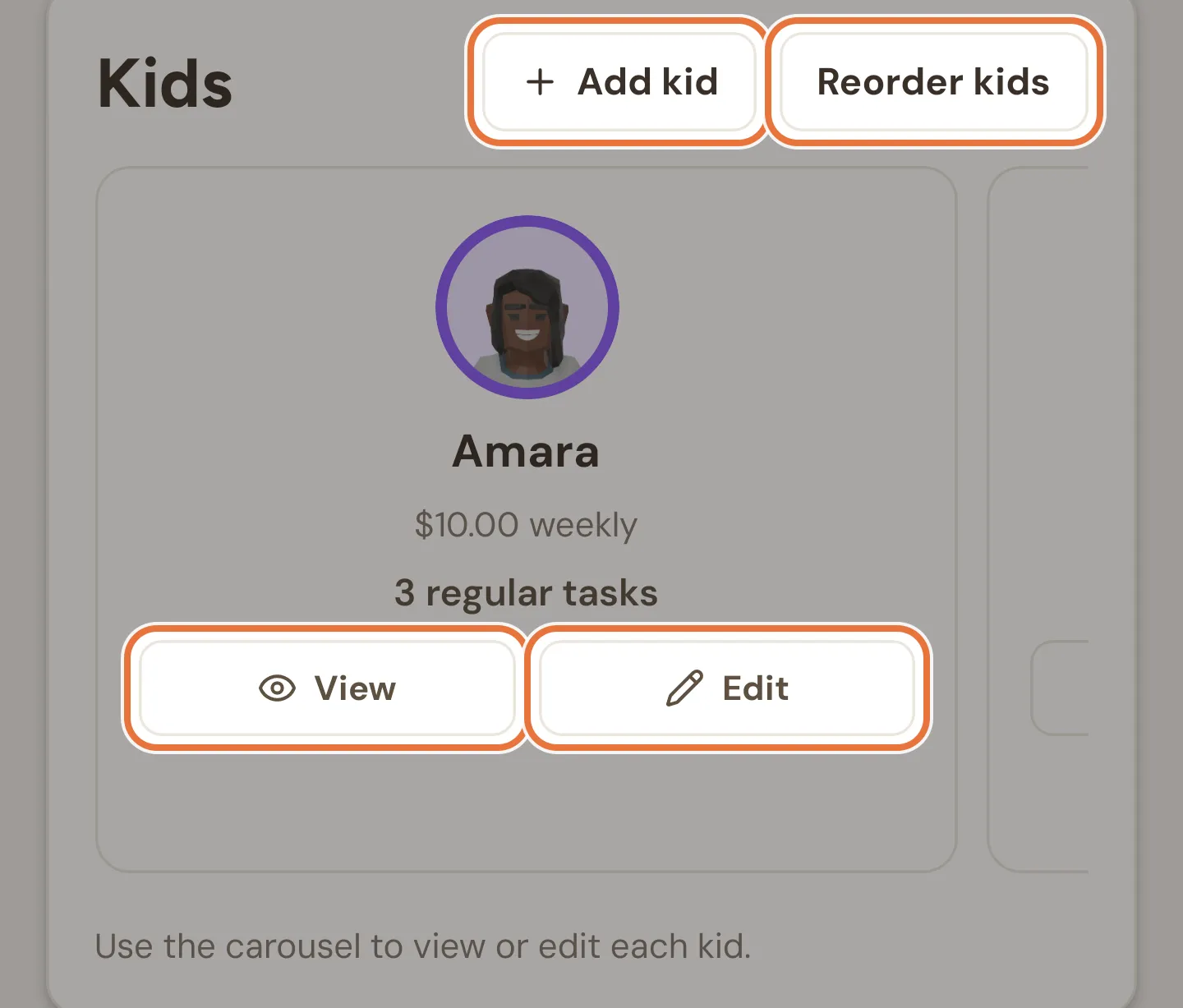
| Tap | Opens |
|---|---|
| The card, or View | Their page |
| Edit | Their settings |
Reordering kids
Section titled “Reordering kids”The order here is the order your kids’ cards appear on the Money tab.
- Tap Reorder kids. The carousel turns into a list with a grip handle on each row.
- Press and hold a kid’s grip handle, then drag them up or down.
- Tap Save order. If you haven’t moved anyone, the button says Cancel instead and just closes the list.
Reorder kids is greyed out until you have at least two kids. While you’re reordering, the family switcher and the Family areas below are switched off.
Add kid at the top of the Kids card adds another kid at any time. A family with no kids shows “No kids yet” and an Add kid button in place of the carousel. See Adding a kid.
Family areas
Section titled “Family areas”A panel of shortcuts, in three groups. Tap a group’s heading to open or close it. Setup starts open; the other two start closed.
Each row shows a live summary, so you can see at a glance what’s set up.
| Row | Summary | Opens |
|---|---|---|
| Tasks setup | Active tasks, regular tasks and responsibilities | The task list |
| Pocket money setup | How many kids have pocket money, how many weekly and monthly schedules, and the total | Pocket money setup |
| Goals setup | Active goals, and how many have auto-fund on | Savings goals |
| Routines setup | How many routines, and how many tasks are in one | Routines |
When an area is empty, a small button appears under its row to get you started:
| Button | Appears when | What it does |
|---|---|---|
| Add task | No active tasks | Opens a new task |
| Set up schedule | No pocket money schedules | Opens the schedule for your first kid |
| Add kid | No pocket money schedules and no kids | Adds a kid |
| Add goal | No active goals | Opens a new goal |
| Add routine | No routines | Opens Routines, ready to add one |
Records
Section titled “Records”| Row | Opens |
|---|---|
| Pocket money runs | Every pocket money payment, with release, withhold and reverse. See Pocket money runs. |
| Task completions | Every job done, across all kids. See Task completions and history. |
| Stats | Each kid’s week in numbers. See Stats. |
| History | Everything that’s happened in the family. See History. |
Family settings
Section titled “Family settings”| Row | What it does |
|---|---|
| Family details | Shows the currency and time zone. Tap to scroll down to the settings below. |
| Parents | Shows how many parents. Tap to scroll down to the settings below. |
| Family screen | Tap to scroll down to the settings below. |
| Billing | Shows your plan or trial and who pays. Tap to open Billing. |
Family details
Section titled “Family details”The first of the settings sections, further down the tab. It shows the family name and currency.
If you’re the family admin, the pencil opens the Family details screen, where you can change the name, time zone and currency. See Families and switching. Other parents see “Only the family admin can edit these settings.”
Members
Section titled “Members”Every parent in the family, with their email and a role badge (admin or member). You’re marked “(you)”.
If you’re an admin:
- Tap someone’s role badge to switch them between admin and member.
- Tap Remove to take a parent out of the family. Quiddo checks first: they keep read-only access for 30 days and get an email. Until then their row is greyed out with “Access ends” and the date.
Invitations that haven’t been accepted yet appear under Pending invitations, with the date they expire. Admins can tap Revoke to cancel one.
Known issue: Role change has no confirmation
Tapping a role badge changes the role straight away, with no confirmation. It’s also possible to end up with more than one admin this way.
Known issue: Parents can’t leave a family
There’s no way for a parent to leave a family from the app. An admin has to remove them.
Invite a parent
Section titled “Invite a parent”Two ways to bring another parent in. Both need your email address verified first; until it is, you’ll see “Verify your email first to invite a co-parent.”
- By email. Type their address and tap Invite. The invitation lasts 7 days. Only admins can send email invitations. Other parents see “Only a family admin can send email invites. You can share the QR code instead.” in place of the email box.
- In person. Tap Share QR Code. The other parent scans the QR code with their phone, or types the code under it into the app. The code lasts 10 minutes, and a countdown shows how long is left. Making a new code cancels the old one. They join as a member.
For how it all fits together, see Two households, one set of kids.
Family screen
Section titled “Family screen”Link a tablet or other shared device as a family screen, which shows every kid’s tasks for today, their savings goals and their balances.
- Tap Generate Link Code. A QR code and a code appear, with a countdown. The code lasts 10 minutes.
- On the tablet, scan the QR code or enter the code.
- When the tablet connects, you’ll see “Family screen connected”.
Linked devices are listed under Active family screens, with when each was last used. Tap the bin to remove one. The whole setup is covered in Family screen.
Danger zone
Section titled “Danger zone”Only admins see this. Delete removes the family for good, including all kids, buckets, transactions and goals. To confirm, you have to type the family’s name exactly, then tap Delete family. There’s no undo.